First-time setup
Initial Configuration
In a web browser go to the URL that you noted when installing Pi-Hole.
You'll be greeted with the Pi-Hole Login Screen.
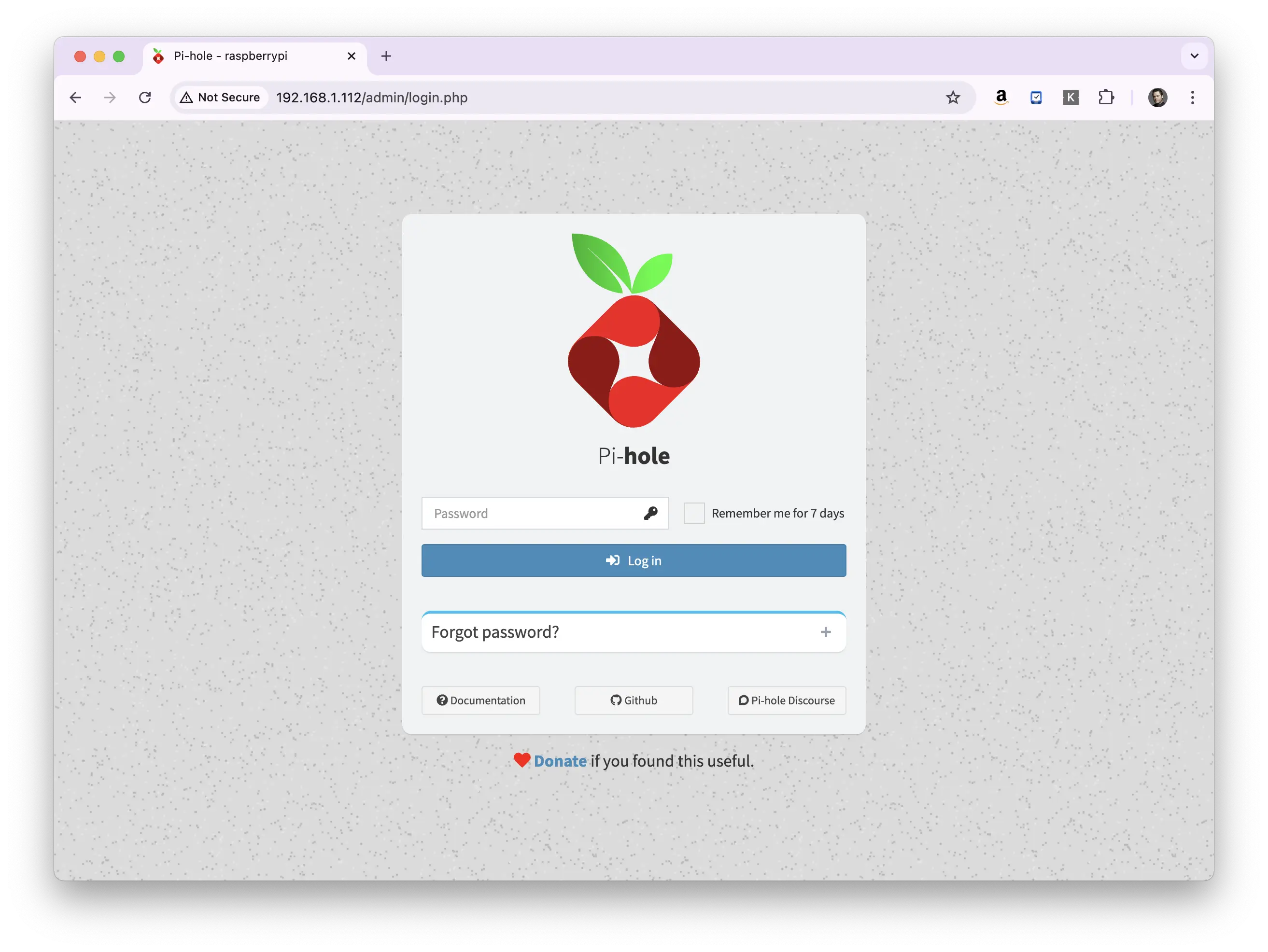
Enter the password you noted down and click the "Log in" button.
When you first log in, you'll be presented with the Pi-hole dashboard.
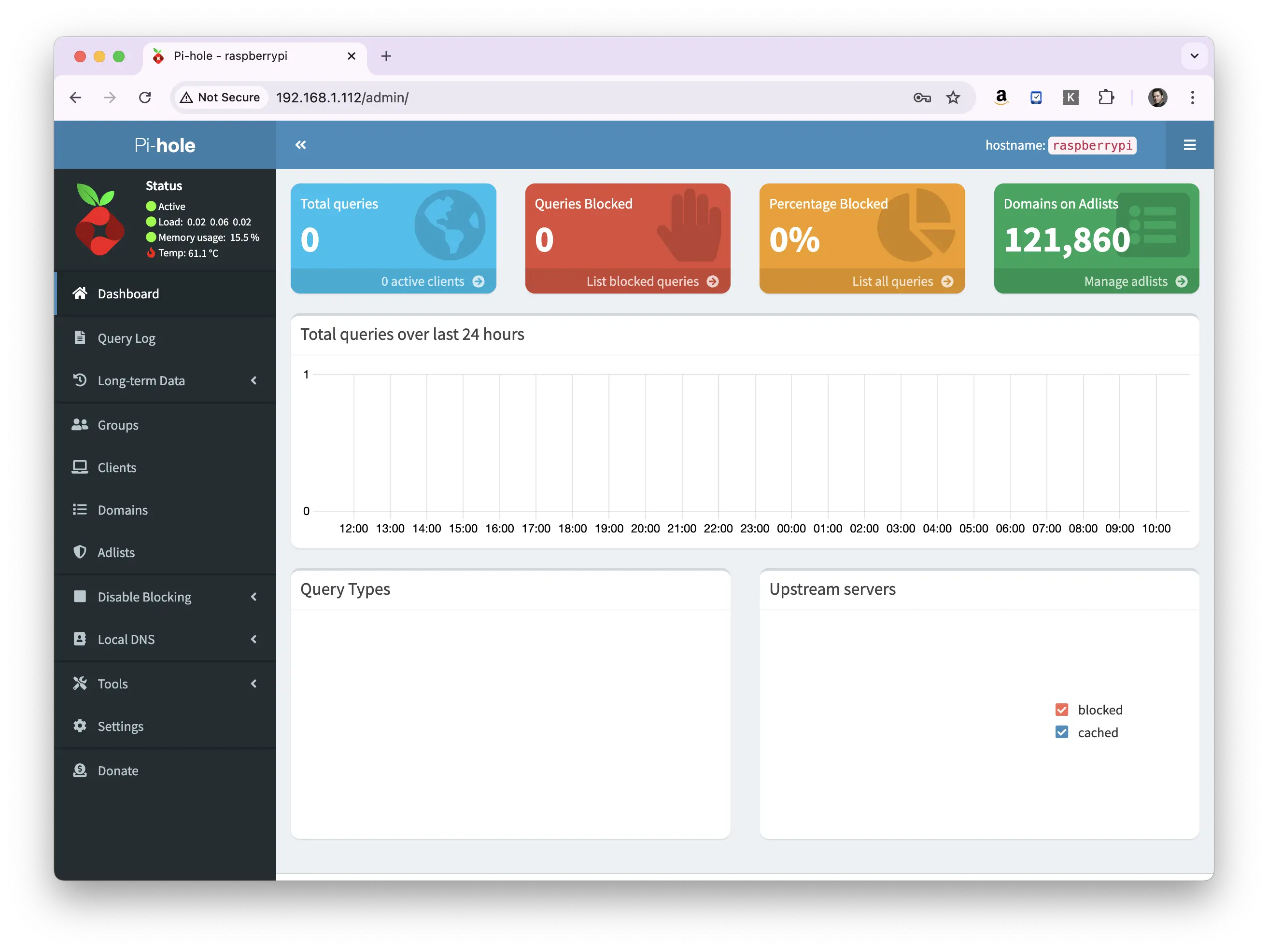
The Pi-Hole admin dashboard provides an overview of network-wide ad-blocking and DNS management. Key sections include:
- Total Queries: Displays the total number of DNS queries processed.
- Queries Blocked: Shows the number and percentage of blocked queries.
- Percent Blocked: The percentage of queries blocked by Pi-Hole.
- Domains on Blocklist: The number of domains on the blocklist.
- Total Queries over last 24 hours: The total number of queries processed in the last 24 hours.
- Query Types: The types of queries processed by Pi-Hole.
- Upsream DNS Servers: The DNS servers used by Pi-Hole to resolve queries.
After first setup, you'll notice that a lot of these numbers are zero, and that's because we haven't actually pointed any of our other network devices such as your desktop or laptop computer to the Pi-hole.
Something here not working for you? Ask in the community — other makers and the Little Bird team read it.