Managing your company account and purchase order
If you're a company admin, the Company page is your hub for a purchase-order account. From here you can see how much of the purchase order is left, review every order your team has placed, see what they keep buying, manage who can order, and download your monthly statements. Sign in and go to Account → Company (or visit /account/company).
Your purchase order at a glance
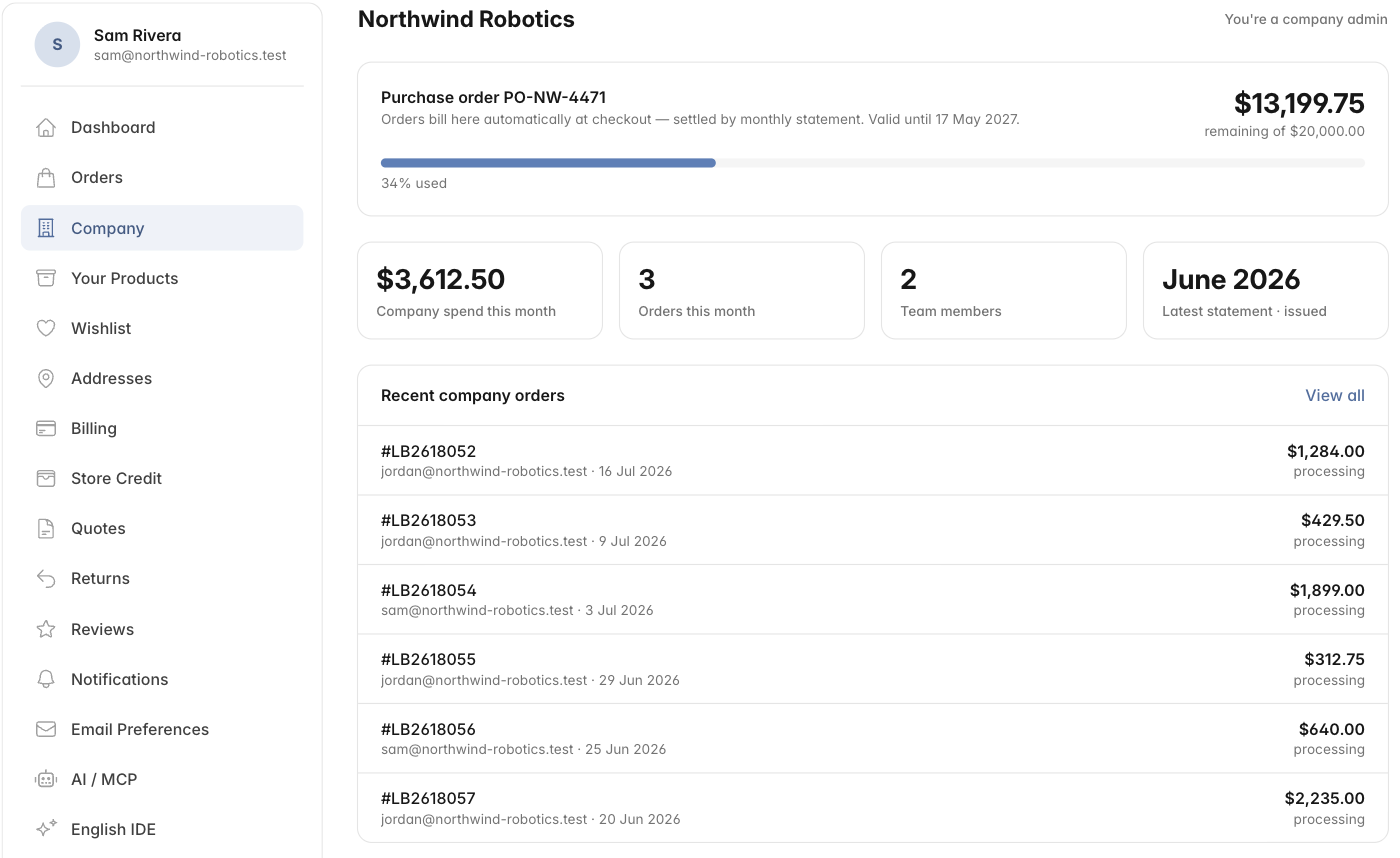
The card at the top shows your active purchase order, how much has been used, and the balance remaining. Every order placed on the PO draws this down; if an order is later cancelled or refunded, the balance is restored automatically. The card also shows the PO's expiry date where one applies.
Seeing every order
Admins and purchasers see all orders placed on the company account — not just their own — with who placed each one, when, for how much, and against which cost centre. (Regular members see only the orders they placed themselves.) You can download the full list as a CSV or an itemised PDF — both list every product on every order (not just order totals), so your accounts-payable team has a complete record to reconcile.
What your team orders
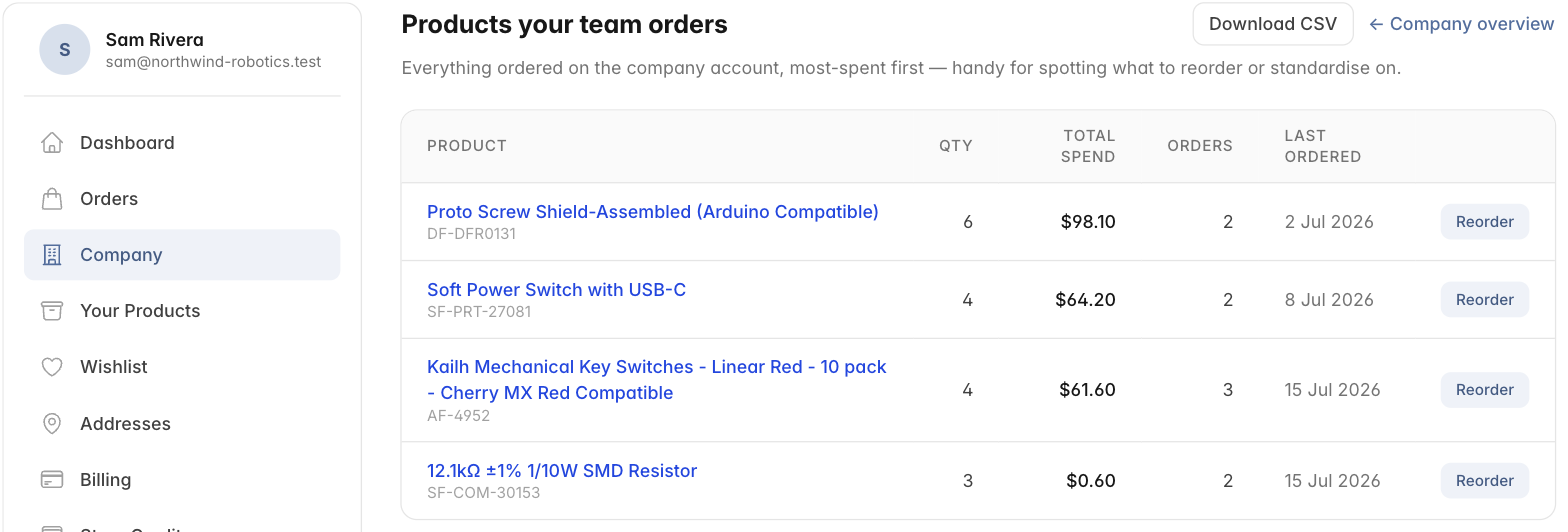
The Products ordered view rolls every line item across all your company's orders into one list — quantity, total spend, how many orders included it, and when it was last bought — most-spent first. It's the quick way to see what your team keeps reordering, standardise on preferred parts, or spot bulk-buy opportunities. Each product links straight back to reorder, and the whole list exports to CSV.
Cost centres
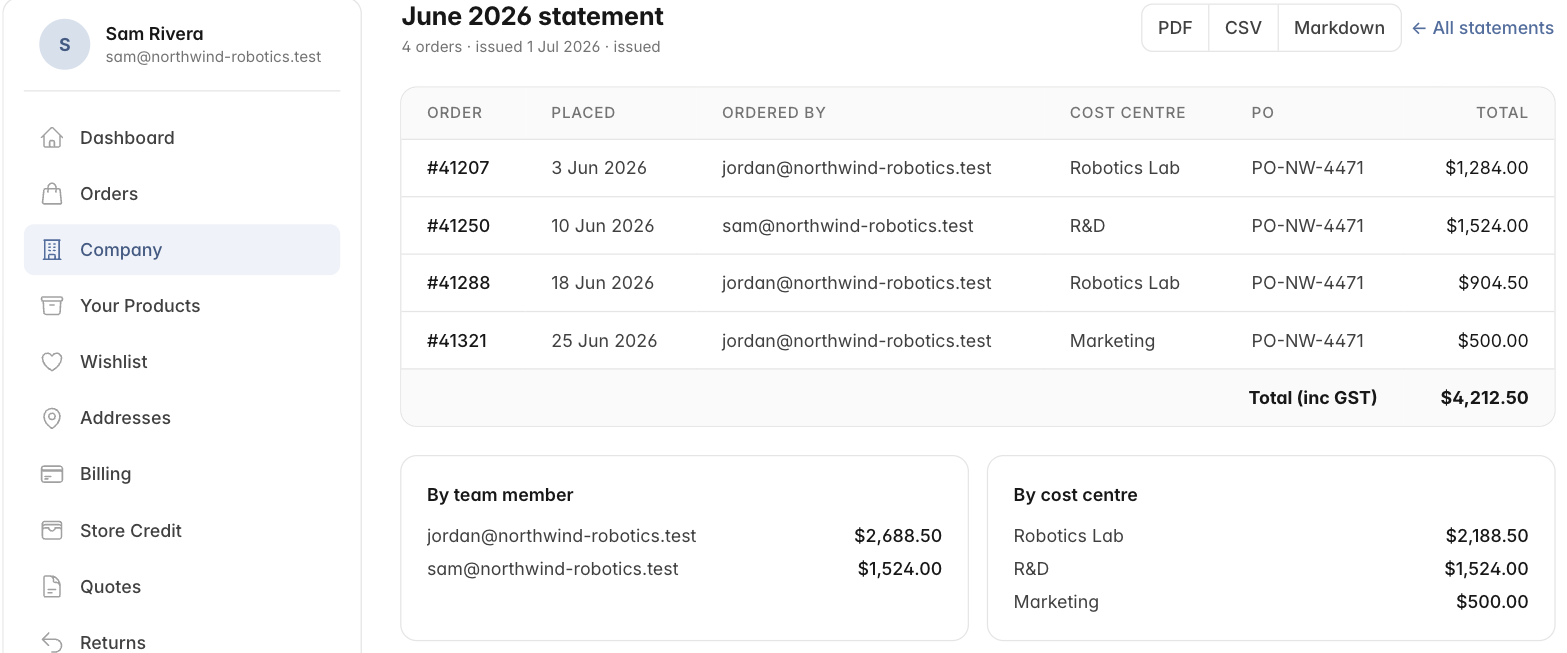
When your team place an order they can tag it with an optional cost centre or reference — a project, department or code your finance team uses. It flows through to the company orders list, every export, and your monthly statement, where spend is also broken down by cost centre. That means your AP team can allocate spend without having to ask anyone what an order was for.
Monthly statements
On the first of each month we issue a statement covering everything ordered on the purchase order the previous month, and email it to your billing contact and admins. Each statement lists every order, who placed it, its cost centre, and a breakdown by team member and by cost centre, with a GST-inclusive total. You can download any statement as a PDF, CSV, or Markdown file.
Your company settles this single statement on its agreed terms — there's nothing to reconcile order by order.
Managing your team
The People section lists everyone on the company account and their role. Anyone who creates an account with one of your approved work-email domains joins automatically, so you rarely need to add people by hand.
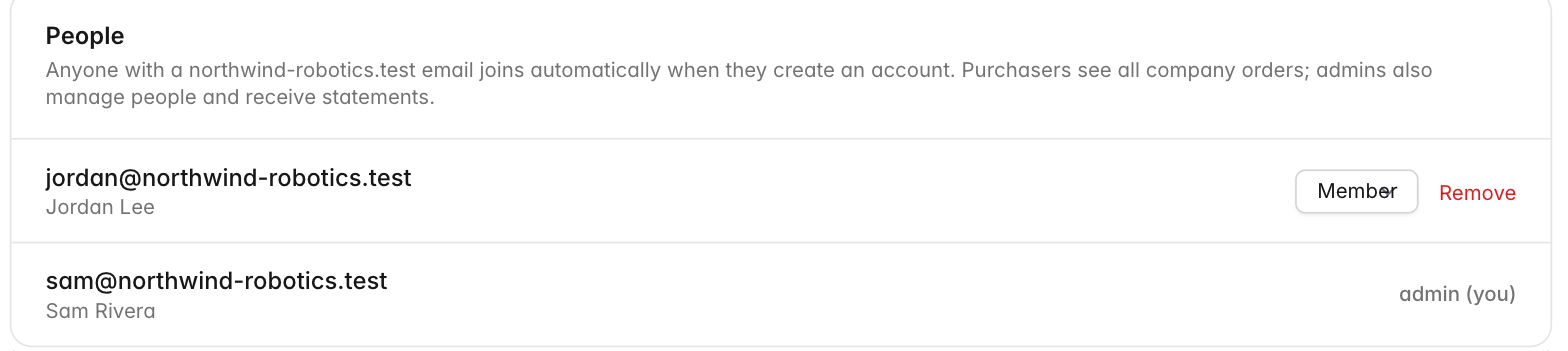
There are three roles:
- Member — can order on the company purchase order and see their own orders.
- Purchaser — everything a member can do, plus visibility of all company orders and statements.
- Admin — everything a purchaser can do, plus managing people and receiving statements and low-balance alerts.
To change someone's role, pick a new one from the dropdown next to their name. To remove someone who has left, use Remove. (You can't change or remove your own admin role — ask another admin if you need that done.)
Staying ahead of the balance
We'll email your admins automatically when the purchase order passes 80% used, and again about 30 days before it expires, so you can arrange a top-up or renewal before ordering is interrupted. If the balance is ever fully used, new orders on the PO are declined until it's topped up.
Setting up, topping up, or renewing your PO
Loading a new purchase order, increasing the amount on an existing one, extending its dates, or adding a new email domain to your account are all handled by our team — just contact us with the details and we'll set it up. To start a company purchase-order arrangement from scratch, get in touch and we'll walk you through it.
Looking for how your team places orders? See Ordering on your company's purchase order.