Ordering on your company's purchase order
If your workplace has a purchase-order account with us, you don't need a credit card to order. Once you're signed in, your orders bill straight to your company's purchase order (PO) and are settled together on a single monthly statement — so there's no payment step at checkout.
Before you start: sign in with your work email
Company ordering is only available when you're signed in with the work email that's on your company's account. This is a security measure — simply typing a company email at checkout isn't enough, because that isn't proof you're authorised to spend on the company's PO. If you don't have an account yet, create one with your work email address; if your company's account is set up, you'll be added to it automatically.
Placing an order
- Add the items to your cart and go to checkout as normal.
- Enter your shipping details and choose a delivery method.
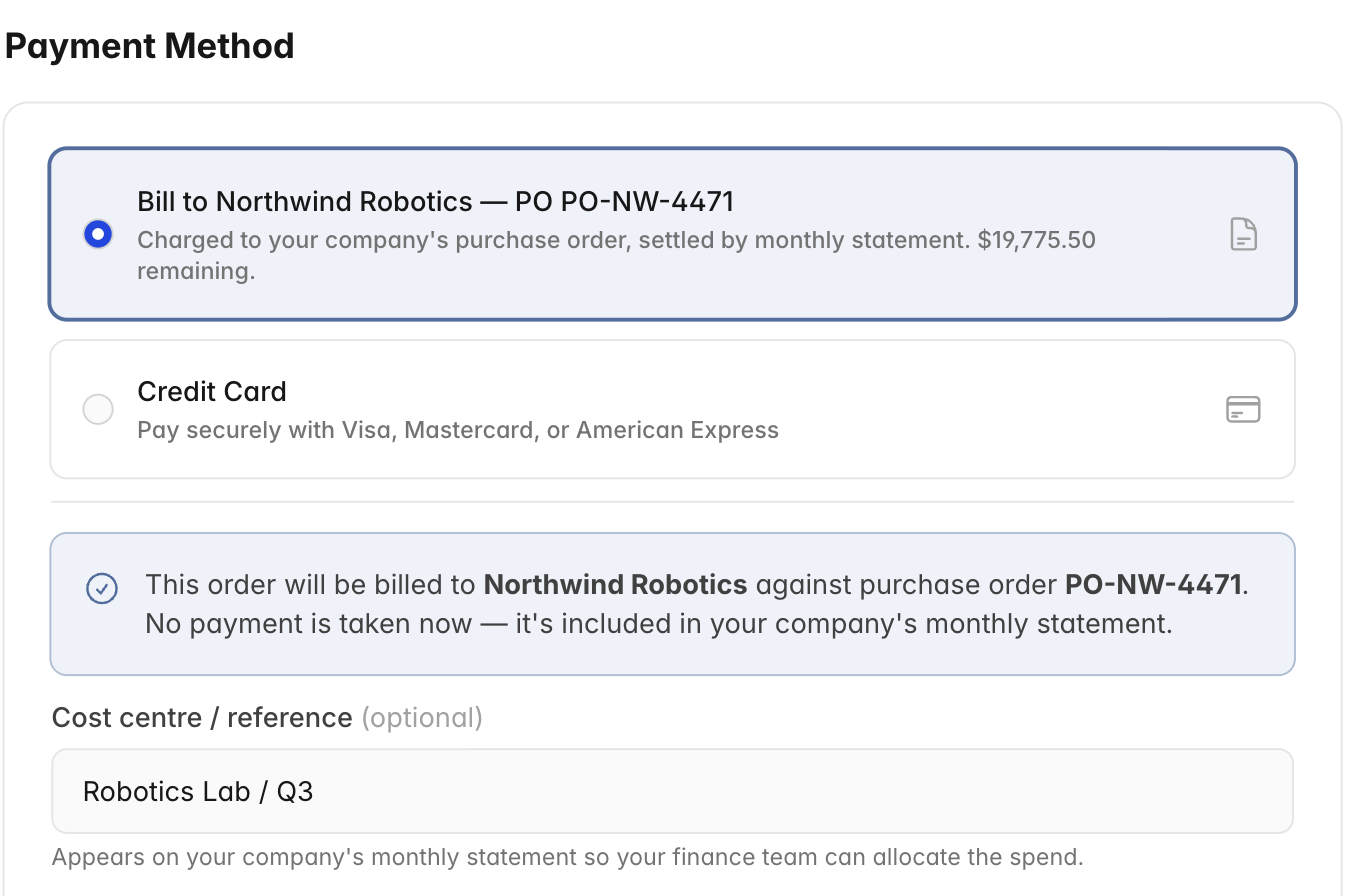
- At the Payment step, choose “Bill to [your company] — PO …”. You'll see how much of the purchase order is still available.
- Optionally add a cost centre or reference. This is a project, department or code your finance team uses to allocate the spend — it appears on your company's monthly statement so they can see exactly where each order should go. We remember your last one to save you re-typing.
- Place the order. No payment is taken now — the order total is added to your company's purchase order. You'll get the usual order confirmation and tracking, exactly like any other order.
![The checkout Payment Method step showing a 'Bill to [company] — PO' option selected, with the remaining balance and a confirmation that no payment is taken now](https://d3j9qx8couj5an.cloudfront.net/u6scyt150t52t9u1yiqjbnm5fhwu)
What happens next
- Your order is picked, packed and shipped as normal.
- Its value is drawn down from the company's purchase order.
- On the first of each month we issue your company a statement of everything ordered on the PO the previous month, and your company pays that one statement on its agreed terms.
Checking your company PO
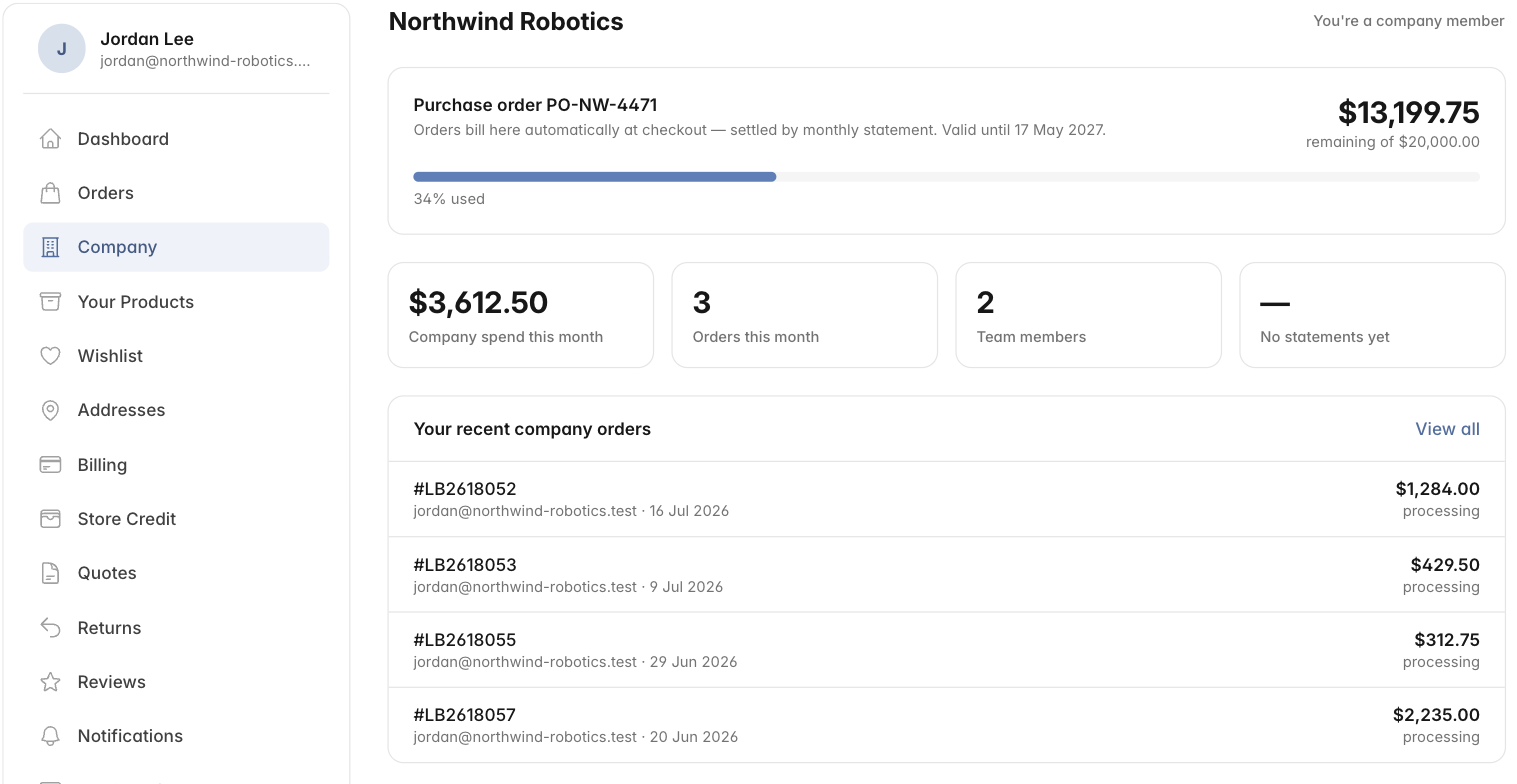
Go to Account → Company (or visit /account/company) any time to see the purchase order's remaining balance, how much your company has spent this month, and your own recent company orders.
Good to know
- Use your own work email. Check out under the same email you sign in with, so the order is correctly attributed to you and billed to the company PO.
- Cost centres are optional. Leave the field blank if your company doesn't use them — you can always add one on your next order.
- Don't see the company option at checkout? Make sure you're signed in with your work email. It also won't appear if your company's purchase order isn't active yet, or if the available balance has run out — check with your company's purchasing admin, or get in touch.
- Per-order limits. Some purchase orders cap the value of a single order. If your cart is over that limit you'll be asked to split it or check with your purchasing admin.
- Running low. As the purchase order nears its limit, your company's admin is notified so they can top it up before it runs out.
Are you the person who manages the company account? See Managing your company account and purchase order.