Mini Piano Module with micro:bit
Turn your micro:bit into a 13-key touch piano with sound, rainbow lights and note names, using MicroPython.
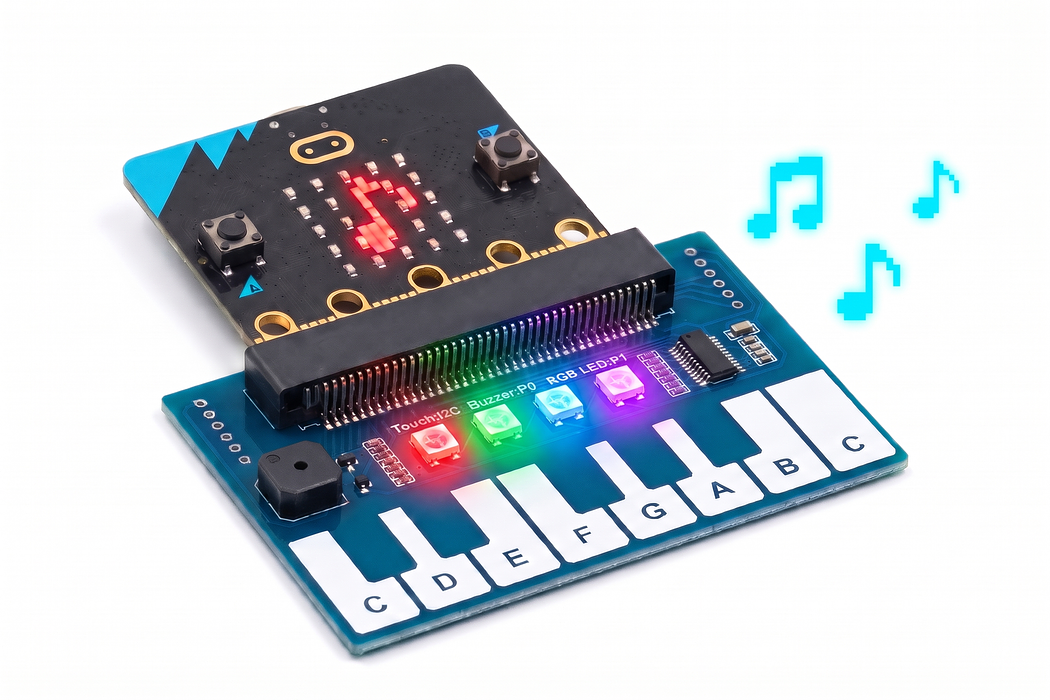
The Mini Piano Module plugs straight onto a micro:bit and gives it 13 capacitive touch keys, a buzzer and four RGB LEDs. In this guide you will plug it in the right way round, upload a MicroPython program, and play notes that light up the LEDs and show their names on the micro:bit's screen.
Along the way you will learn how the micro:bit reads all 13 keys from a single touch chip over I2C, and how one program can drive sound, light and the display at the same time.
Step 1 — A closer look at the Mini Piano Module
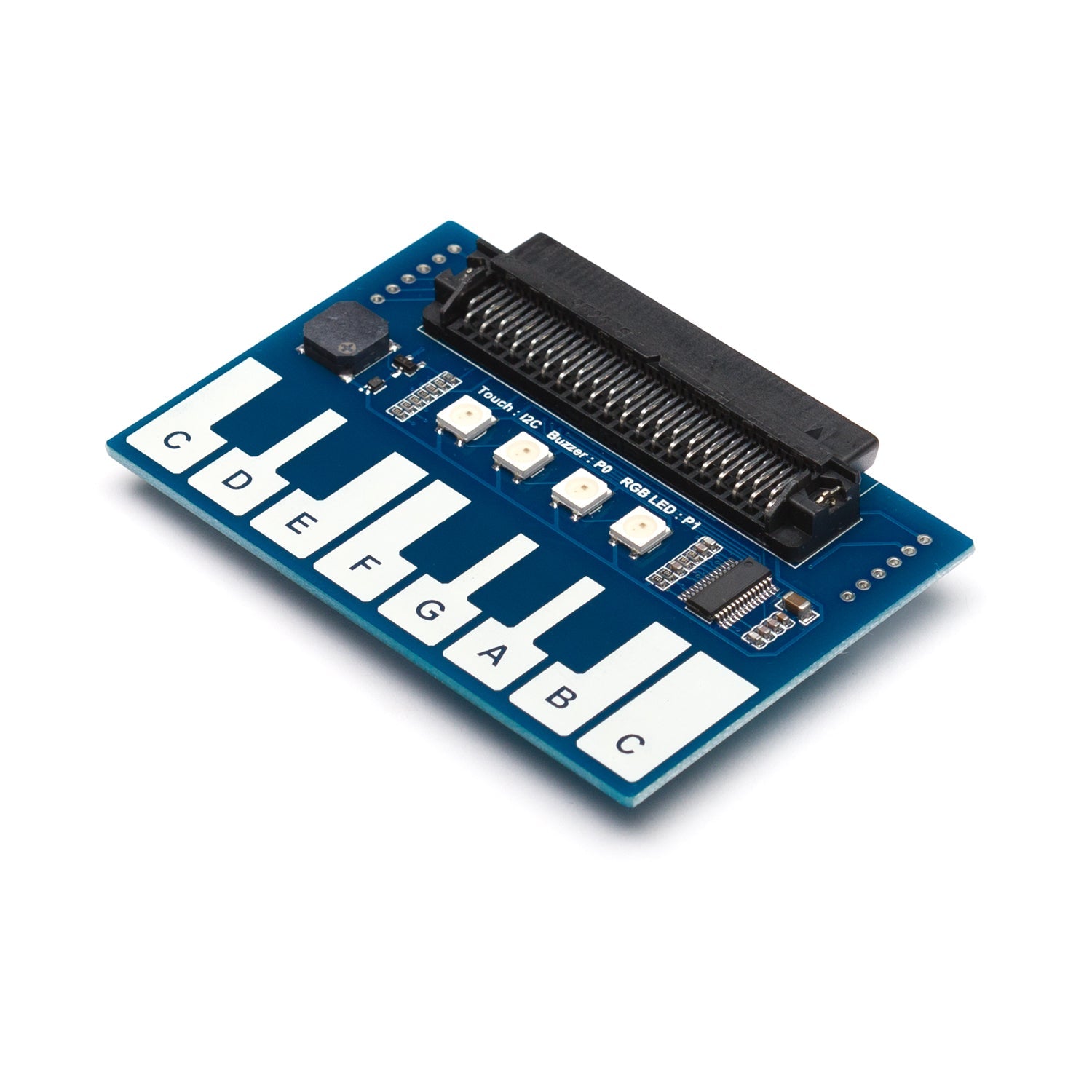
The silkscreen above the LEDs tells you how the board talks to the micro:bit: Touch: I2C, Buzzer: P0, RGB LED: P1.
- 13 touch keys. The eight white keys are labelled C to C. The five blue gaps between the tops of the white keys are the black keys: C#, D#, F#, G# and A#.
- Touch controller. The small black chip on the right is a TTP229 touch controller. It senses all 13 keys and reports them to the micro:bit over I2C, using pins P19 (SCL) and P20 (SDA).
- Buzzer. The square buzzer on the left plays whatever tone the micro:bit sends to P0.
- Four RGB LEDs. These are WS2812B ("NeoPixel") LEDs, all driven from P1.
- Expansion headers. The holes at each end break out 3V3, GND, P0, P1, P2, SCL, SDA, SCK, MISO and MOSI if you want to add more parts later.
Step 2 — Place the Mini Piano Module
Lay the piano flat with its keys towards you. The black socket along the back edge is where the micro:bit plugs in. It's a right-angle socket that opens towards the back, so the micro:bit slides in flat from behind rather than standing up.
Loading assembly…
Step 3 — Lay the micro:bit flat, LED screen facing up
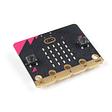
Lay the micro:bit flat behind the piano with its LED screen and A and B buttons facing up, the same way as the piano keys, and its gold edge pointing at the socket. Button A and the 0 ring should be on the buzzer side, with B and GND on the touch-chip side.
It's easy to put it in upside down. If you can see the micro:bit's processor, speaker and "COMPASS" label facing up, flip it over before you slide it in.
Loading assembly…
Step 4 — Slide the micro:bit into the socket
Keeping it flat, slide the micro:bit forwards into the socket until it stops. The gold fingers disappear inside and the five rings sit just outside the socket. That lines P0 up with the buzzer, P1 with the LEDs, and P19 and P20 with the touch chip.
Upside down, the piano's power and ground pins land on the micro:bit's P0 and P1 instead, so the board gets no power: the LEDs stay dark and the keys do nothing. If that happens, unplug USB, flip the micro:bit over and slide it back in.
Loading assembly…
Step 5 — Connect the micro:bit to your computer
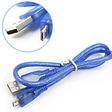
Plug the micro USB cable into the micro:bit's USB socket, at the end furthest from the keys, and plug the other end into your computer.
The micro:bit shows up as a drive called MICROBIT, like a USB stick. The piano is powered through the micro:bit, so you don't need any other power. Once the code is uploaded, touching a key lights the four LEDs in that key's colour.
Make sure your cable carries data and not just power. If no MICROBIT drive appears, try another cable.
Loading assembly…
Step 6 — Open the micro:bit Python Editor
This project is written in MicroPython. Open the free micro:bit Python Editor at python.microbit.org.
Use Google Chrome or Microsoft Edge if you can. They let the editor send code straight to the micro:bit over USB. Other browsers work too, but you will copy a file across by hand in the next step.
The editor opens with a small example program. Select all of it and delete it, ready for the piano code.
Step 7 — Upload the piano program
# Piano for micro:bit (V2, MicroPython)
#
# Hardware on the piano board:
#   - 13 capacitive keys read by a TTP229 touch chip over I2C (address 0x57)
#   - buzzer on P0
#   - 4 WS2812B RGB LEDs on P1
#
# Plug the micro:bit in with its LED screen facing the same way as the piano keys.
# Back-to-front, the piano board gets no power and nothing on it responds.
#
# Controls: touch a key to play it. A = octave down, B = octave up.

from microbit import *
import music
import neopixel

TOUCH_ADDR = 0x57
ALL_KEYS = 0x1FFF  # 13 keys, bit 0 = low C ... bit 12 = high C
NAMES = ('C', 'C#', 'D', 'D#', 'E', 'F', 'F#', 'G', 'G#', 'A', 'A#', 'B', 'C')
MIDDLE_C = 261.63
LED_BRIGHTNESS = 40  # out of 255; the LEDs run off the micro:bit's 3V supply
USE_MICROBIT_SPEAKER = False  # True also plays through the micro:bit's own speaker

leds = neopixel.NeoPixel(pin1, 4)
octave = 0
glow = [0.0] * 4
glow_colour = (0, 0, 0)


def read_keys(previous):
    try:
        data = i2c.read(TOUCH_ADDR, 2)
    except OSError:
        return previous
    keys = (data[0] | (data[1] << 8)) & ALL_KEYS
    # Every key at once is a bus glitch, not a ten-finger chord.
    return previous if keys == ALL_KEYS else keys


def lowest_key(mask):
    for key in range(13):
        if mask & (1 << key):
            return key
    return -1


def key_colour(key):
    # Spread the 13 keys around the colour wheel, red at low C to violet at high C.
    h = key * 300 // 12
    x = 255 * (60 - abs(h % 120 - 60)) // 60
    if h < 60:
        return (255, x, 0)
    if h < 120:
        return (x, 255, 0)
    if h < 180:
        return (0, 255, x)
    if h < 240:
        return (0, x, 255)
    return (x, 0, 255)


def show_leds():
    r, g, b = glow_colour
    for i in range(4):
        level = glow[i] * LED_BRIGHTNESS / 255
        leds[i] = (int(r * level), int(g * level), int(b * level))
    leds.show()


def show_note_name(key):
    name = NAMES[key]
    image = Image(name[0])
    if len(name) > 1:
        image.set_pixel(4, 0, 9)  # sharp: dot in the top-right corner, free in every letter
    display.show(image)


def start_note(key):
    global glow_colour
    music.pitch(int(MIDDLE_C * 2 ** (key / 12 + octave)), pin=pin0, wait=False)
    glow_colour = key_colour(key)
    # Light the LED above the key brightest, with its neighbours glowing softer.
    centre = key * 3 / 12
    for i in range(4):
        glow[i] = max(0.15, 1 - abs(i - centre) / 2)
    show_leds()
    show_note_name(key)


def stop_note():
    music.stop(pin0)
    display.clear()


def change_octave(step):
    global octave
    octave = max(-2, min(2, octave + step))
    display.show(str(4 + octave))
    music.pitch(int(MIDDLE_C * 2 ** octave), duration=120, pin=pin0, wait=False)


def startup():
    if USE_MICROBIT_SPEAKER:
        speaker.on()
    else:
        speaker.off()
    display.show(Image.MUSIC_QUAVER)
    for step in range(13):
        for i in range(4):
            leds[i] = tuple(c * LED_BRIGHTNESS // 255 for c in key_colour((step + i * 3) % 13))
        leds.show()
        sleep(40)
    music.play(['C4:1', 'E4:1', 'G4:1', 'C5:3'], pin=pin0)
    leds.clear()
    display.clear()


startup()
held = 0
note = -1
while True:
    keys = read_keys(held)
    pressed = keys & ~held
    if pressed:
        note = lowest_key(pressed)
        start_note(note)
    elif note >= 0 and not keys & (1 << note):
        # The sounding key was let go: fall back to another held key, or go quiet.
        note = lowest_key(keys)
        if note >= 0:
            start_note(note)
        else:
            stop_note()
    held = keys

    if button_a.was_pressed():
        change_octave(-1)
    if button_b.was_pressed():
        change_octave(1)

    if note < 0 and max(glow) > 0:
        for i in range(4):
            glow[i] = glow[i] * 0.8 if glow[i] > 0.02 else 0
        show_leds()

    sleep(10)
Copy this program and paste it into the editor.
Chrome or Edge: click Send to micro:bit. The first time, the editor asks you to connect. Choose the micro:bit from the pop-up list and click Connect. The yellow light on the back of the micro:bit flickers while the program copies across.
Other browsers: click Save to download a .hex file, then drag it onto the MICROBIT drive. The micro:bit restarts by itself when the copy finishes.
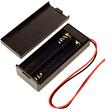
The program stays on the micro:bit after you unplug it, so you can run the piano from a battery pack later.
Step 8 — Prefer blocks? The same piano in MakeCode
If you'd rather drag and drop blocks than type Python, here is the piano in Microsoft MakeCode. It reads the touch chip with the i2c read number block, plays notes on the buzzer, lights the LEDs and shows each note's letter. A and B change the octave, just like the Python version.
- Open it in the editor: makecode.microbit.org/_VhiP40cHe5U0, or press Edit on the embed.
- Click Download, then drag the
.hexfile onto the MICROBIT drive. In Chrome or Edge you can pair the micro:bit and download straight to it.
To keep the blocks simple, this version plays the lowest key you're touching and lights all four LEDs in that key's colour. To find which keys are touched without binary maths, it uses remainder of (keys ÷ 2index) ÷ 2: that gives 1 when key number index is touched.
The note letter is shown in its own forever loop. Showing a letter makes the micro:bit pause for a moment, and keeping that pause in a separate loop stops the notes from lagging.
Step 9 — Play your piano
When the program starts, the micro:bit shows a music note, a rainbow sweeps across the four LEDs and the buzzer plays a short C–E–G–C chime. Keep your fingers off the keys for that first moment while the touch chip settles.
Now touch a key:
- The buzzer plays the note for as long as you hold the key.
- The micro:bit's screen shows the note's letter. Sharps (the blue black keys) add a dot in the top-right corner, so C# shows as a C with a dot.
- The LEDs light up in that key's colour, from red at low C to violet at high C. The LED nearest the key glows brightest, and the light fades when you let go.
- If you hold one key and touch another, the new note takes over. Let go of it and the first note comes back.
Press B to move up an octave and A to move down. The screen shows which octave you are in: 4 is the middle, with middle C on the lowest key, and you can go from 2 up to 6. Try playing a C major scale on the white keys, then try the black keys for a spookier sound.
Step 10 — How the micro:bit reads 13 keys at once
The micro:bit doesn't watch 13 separate pins. The TTP229 touch chip senses every key and keeps a running report, and the micro:bit asks for it about 100 times a second over I2C, a two-wire bus on P19 and P20:
data = i2c.read(TOUCH_ADDR, 2)
keys = (data[0] | (data[1] << 8)) & ALL_KEYS
The chip at address 0x57 replies with 2 bytes, which is 16 bits. Each bit is one key: 1 means touched, 0 means not. The program joins the two bytes into one number, keys. Bit 0 is the low C, bit 1 is C#, and so on up to bit 12 for the high C. ALL_KEYS (0x1FFF, thirteen 1s) masks off the three unused bits.
For example, touching A (key 9) makes the chip send [0, 2]. The 2 in the second byte is bit 1 of that byte, which is bit 9 overall.
Spotting a new touch
Each time round the loop, the program compares the keys now with the keys last time:
pressed = keys & ~held~held flips every bit of the old reading, so & keeps only keys that are touched now and weren't before. Those are the new presses, and the lowest one starts playing.
Try a prediction
What number will keys hold if you touch E (key 4) and G (key 7) together?
Check your answer
Bit 4 is worth 16 and bit 7 is worth 128, so keys is 16 + 128 = 144. In binary that's 0b10010000, with one 1 for each key you're touching.
Why i2c.scan() can't find it
If you explore with i2c.scan(), you'll get an empty list, even though everything works. A scan looks for devices by trying to write to each address, and this touch chip only answers reads. Reading it directly with i2c.read(0x57, 2) is the way to talk to it.
Step 11 — How the notes, lights and screen work
Turning a key into a pitch
music.pitch(int(MIDDLE_C * 2 ** (key / 12 + octave)), pin=pin0, wait=False)In music, going up 12 keys (one octave) doubles the frequency, and each single key multiplies it by the twelfth root of 2, about 1.06. Starting from middle C at 261.63 Hz, key 9 works out as 261.63 × 29/12 = 440 Hz, the A that orchestras tune to. Adding octave doubles or halves the pitch, which is what the A and B buttons change.
wait=False matters. The tone starts and the program carries on straight away, so it can keep checking the keys while the note sounds. music.stop(pin0) silences it when you let go.
Colours and the glow
key_colour() spreads the 13 keys around a colour wheel, from red through yellow, green and blue to violet. start_note() works out which of the four LEDs sits nearest the key and makes it brightest. After you let go, the main loop shrinks each LED's glow by 20% every 10 ms so the light fades out smoothly.
LED_BRIGHTNESS is kept low on purpose. The LEDs are powered from the micro:bit's 3 V supply, so a low setting goes easy on the micro:bit and on batteries, and the LEDs are still bright enough to see clearly.
Which speaker?
The micro:bit V2 has its own speaker as well as the piano's buzzer. startup() turns the built-in speaker off so the sound comes from the piano board. Change USE_MICROBIT_SPEAKER to True to hear both.
Step 12 — Make it your own
Change one thing at a time, send the program again, and check whether it does what you expected.
- Louder: set
USE_MICROBIT_SPEAKER = Trueso the micro:bit's speaker plays along with the buzzer. - Brighter or dimmer: try
LED_BRIGHTNESS = 15for a soft glow or80for more sparkle. Keep it low if you're running on batteries. - A new start-up tune: edit the list in
music.play().'C4:2'means the note C, in octave 4, held for 2 beats. Try['E4:2', 'D4:2', 'C4:4']. - Chord spotter: a C major chord is C, E and G held together, which is bits 0, 4 and 7, so
keys == 0b10010001. Add a check in the main loop that showsImage.HAPPYwhen you play it. Can you add F major (F, A and high C) too? - Record and play back: the micro:bit V2's gold logo is a touch sensor too. Every time a new note starts, add it and
running_time()to a list. Whenpin_logo.is_touched()is true, play the list back with the same gaps between notes.
Step 13 — Troubleshooting
- Nothing lights up and there's no sound. The micro:bit is almost certainly in upside down. Unplug USB, flip the micro:bit over so its LED screen faces up like the keys, slide it fully into the socket and plug back in.
- There's sound, but the LEDs stay dark and the keys do nothing. This is the same upside-down problem. If
USE_MICROBIT_SPEAKERis on, the sound is coming from the micro:bit's own speaker, not the piano. - A sad face with 504 or 521 after copying a
.hexfile. The copy to the MICROBIT drive timed out (504) or arrived corrupted (521), and aFAIL.TXTfile appears on the drive. It isn't a problem with the piano code. Unplug the micro:bit, plug it back in and copy the file again. On a Mac, using Send to micro:bit in Chrome or Edge avoids drive copying altogether. - A key plays by itself, or one key won't respond. The touch chip learns what "untouched" feels like when it first gets power. Unplug the power for a few seconds and plug it back in, keeping your hands off the keys for the first second.
- The micro:bit scrolls an error mentioning
speaker. You're using a micro:bit V1. The Python program is written for the micro:bit V2. - The editor can't connect. Use Chrome or Edge, and close any other tab that's connected to the micro:bit, such as MakeCode. Or click Save and drag the
.hexfile onto the MICROBIT drive instead. i2c.scan()returns an empty list. That's normal for this board. See "Why i2c.scan() can't find it" above.
Parts List
Required Parts (3)
Any micro USB cable with data lines
x1
$2.55
In stockOptional Extras (1)
$3.80
Project Summary
4 parts total
Unavailable items will be skipped