


Beginner
Set Up Arduino IDE for ShakeUp
By Cherie Tan
The ShakeUp is a board that can emulate a keyboard and mouse, it also has various sensors. It can easily be used with Scratch as well as in the Arduino IDE! But before using it on the Arduino IDE, it will need to be set up.
In this guide, you will learn to add board support for our products such as the ShakeUp.
Complete this guide to get started with using the ShakeUp in the Arduino IDE!
Head to the Arduino Downloads webpage and download the software for your operating system.
Step 1 — Download the Arduino Software
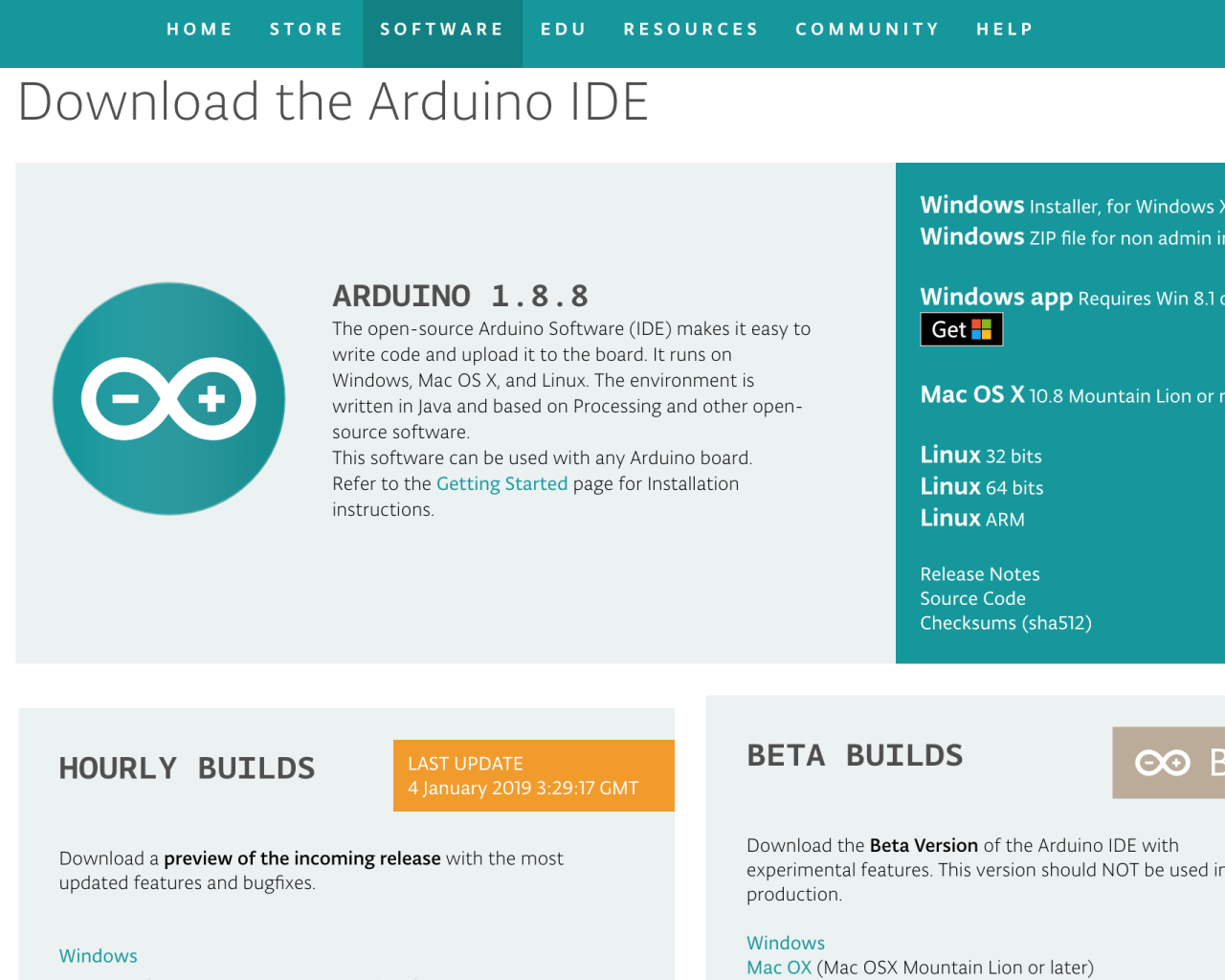
Head to the Arduino Downloads webpage and download the software for your operating system.
Step 2 — Preferences
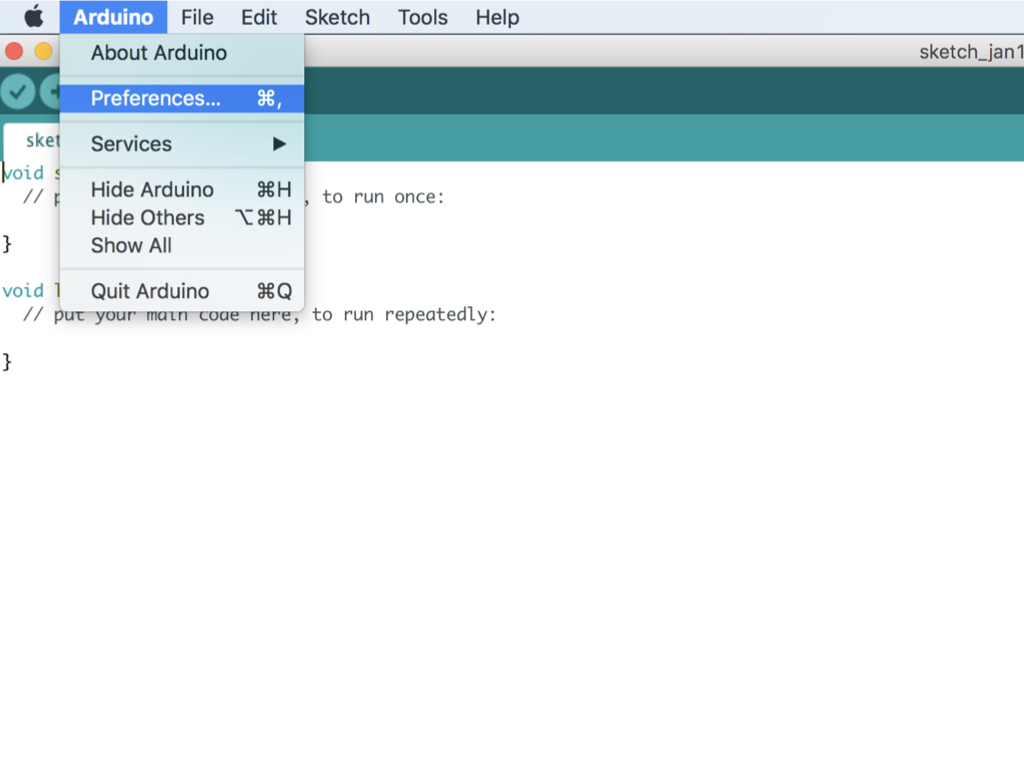
After downloading and installing the software, open up the Arduino IDE!
To add board support for our products, start Arduino and open the Preferences window.
On Windows on Linux, Click (File > Preferences)
On a Mac, click on the (Arduino Menu > Preferences)
On Windows on Linux, Click (File > Preferences)
On a Mac, click on the (Arduino Menu > Preferences)
Step 3 — Additional boards manager
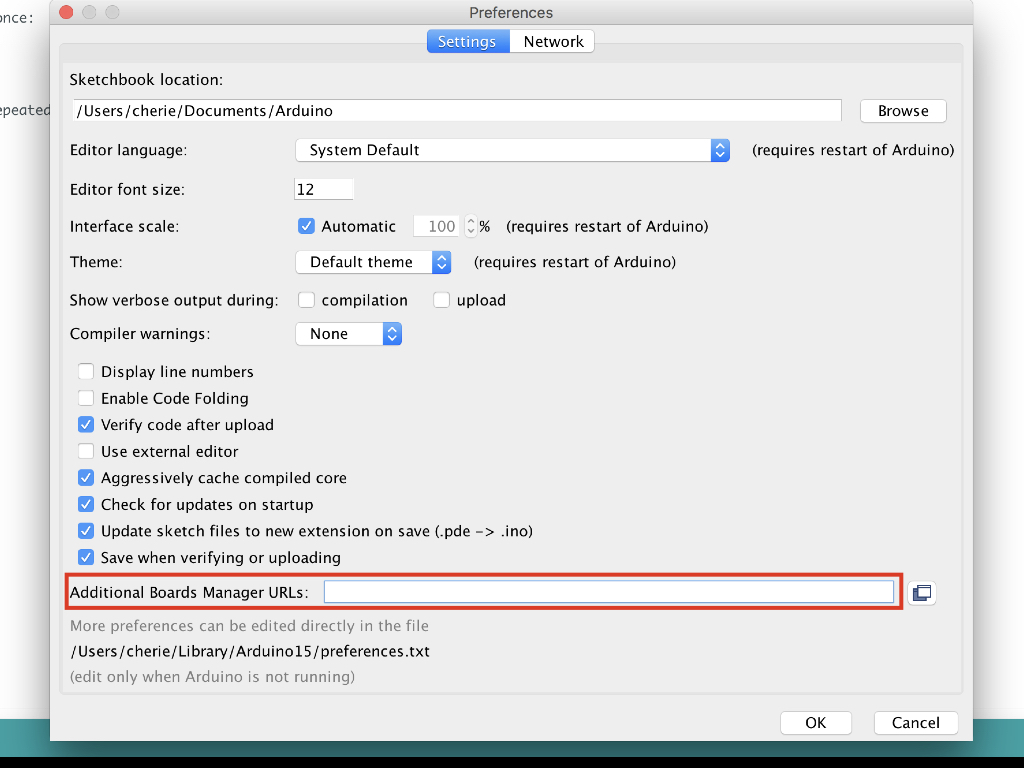
Copy and paste the following URL into the 'Additional Boards Manager URLs' input field: https://raw.githubusercontent.com/littlebirdelectronics/Arduino_Boards/master/IDE_Board_Manager/package_littlebird_index.json
If there is already an URL from another manufacturer in that field, click the button at the right end of the field. This will open an editing window allowing you to paste the above URL onto a new line.
Step 4 — Boards manager
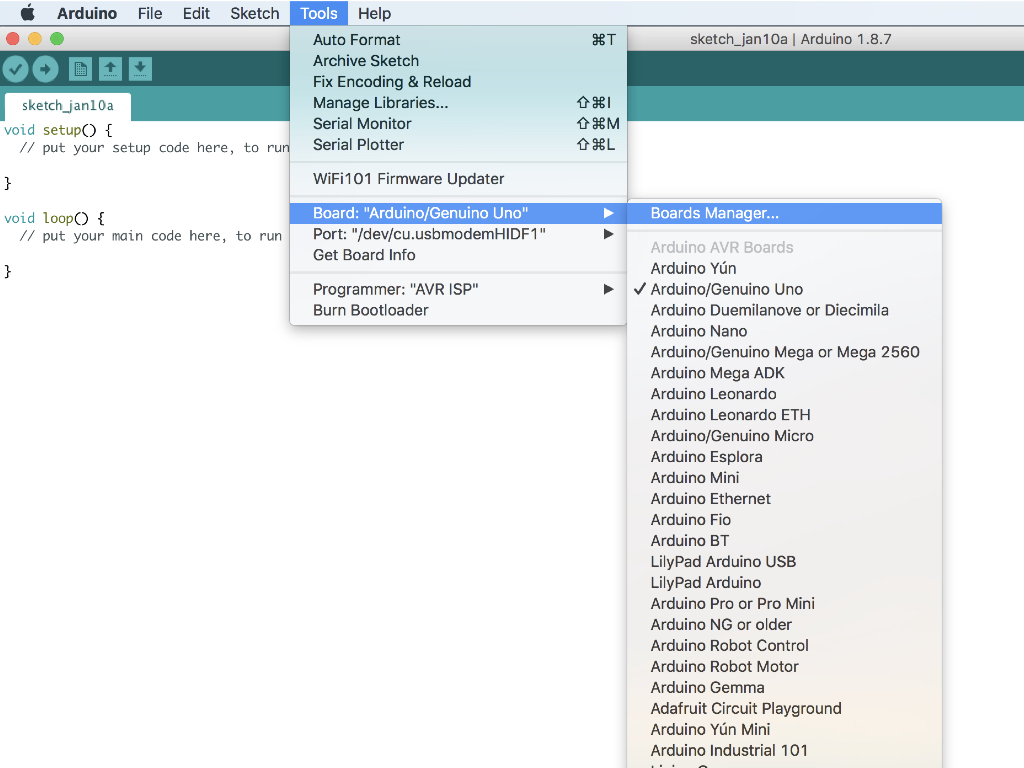
Now open up the Boards Manager by clicking on Tools > Board
Scroll to the top of the board list, and select Boards Manager.
If you type "Little Bird" (without quotes) into the "filter your search" field, you will see options to install Little Bird's board files. Click in the desired box, and click the "Install" button that appears.
Once installed, the boards will appear at the bottom of the board list. Select 'Little Bird Shakey'.
Now you can go on to program the ShakeUp with the Arduino IDE!
Step 5 — Example sketches
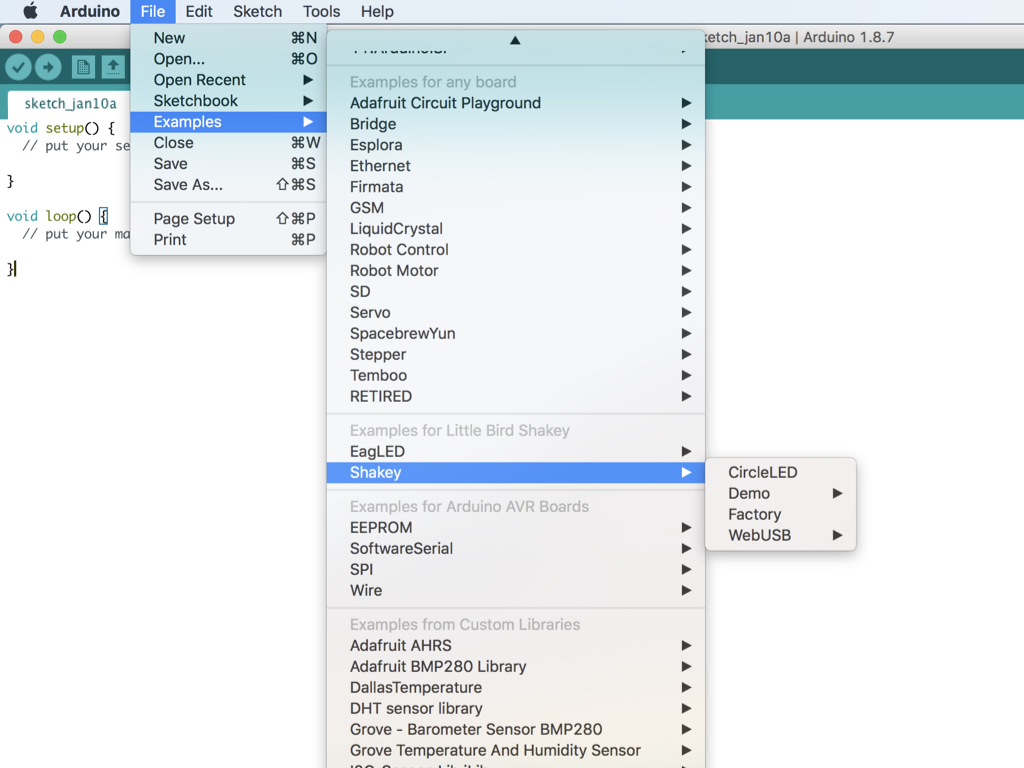
With that set up, you will now be able to find the example sketches for the ShakeUp.
Click on Files > Examples
You should now see the example sketches in 'Examples for Little Bird Shakey'
