Make a button remember
Turn a momentary press into an on/off switch, and learn why clean button events need debouncing.
Step 1 — Predict what a held button should do
A doorbell works while you hold its button; a desk lamp remembers a click. You will give the shield that second behaviour.
- Store an on/off state.
- Recognise one new press instead of repeatedly acting on a held button.
- Filter contact bounce without freezing the program.
Predict the LED state after three separate presses. Then predict what should happen during one three-second hold.
Before you begin
Before running: now - rawChangedAt is elapsed time, not a pause. With now=125 and rawChangedAt=100, it is 25 ms. rawChangedAt must survive loop passes.
Your goal: Detect one stable press. Show this with a prediction, a tested change and an explanation using the program’s names.
Retrieve one idea: what input, state or output did you change in the previous project?
Need a reminder? Press to light.
Step 2 — Identify the input and output
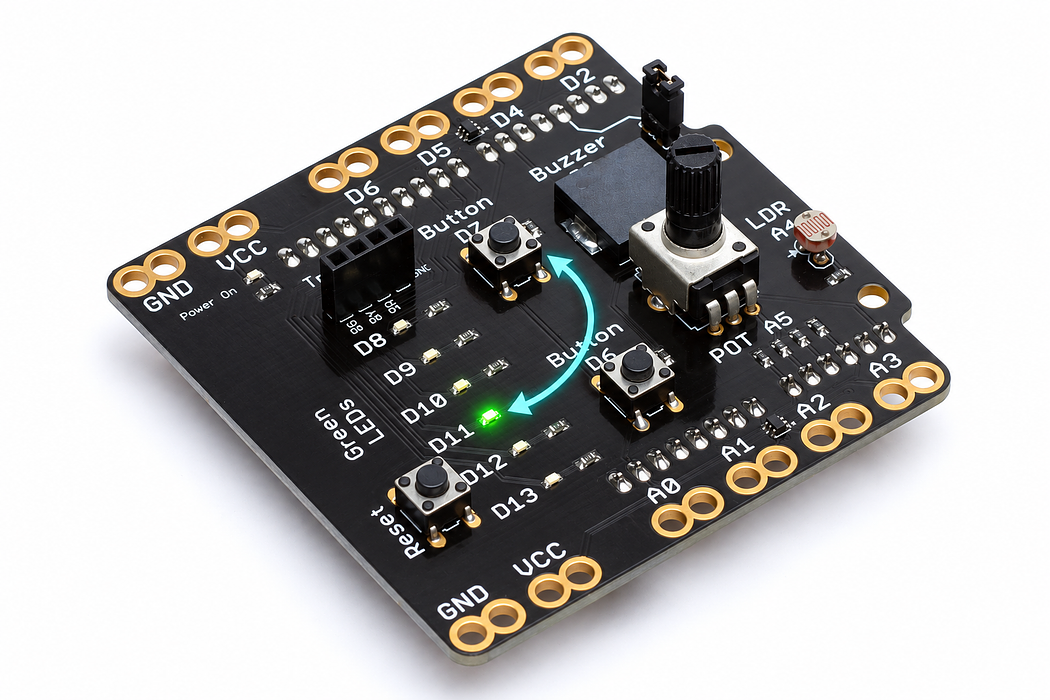
Use the onboard button labelled D7 and green LED labelled D12. The second button, labelled D6, is a different input. No extra wires are needed.
The D7 circuit already defines its released level. We use INPUT and treat HIGH as pressed; the pull-up convention from some other button circuits does not apply here.
Step 3 — Program the shield
Choose Arduino Uno, then Verify and Upload the supplied sketch. The English instructions describe the same behaviour as the C++ beside them. Keep the USB cable connected while you test.
Step 4 — Test separate presses and a long hold
Open the serial console at 9600 baud. Tap D7 once: D12 stays on after release. Tap again: it stays off. Now hold D7 for three seconds; you should see only one change and one message. Release and press again to make the next change.
Write down your prediction and result for three taps. Starting from off, the final state should be on.
Step 5 — Explain the three kinds of memory
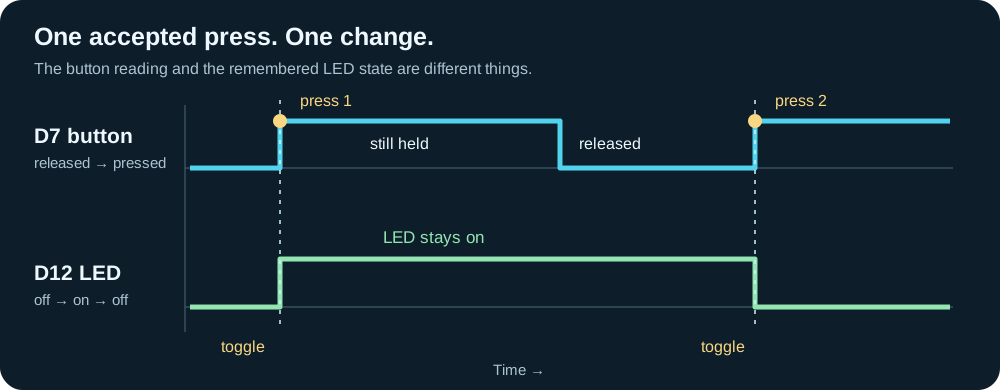
rawButton remembers the latest electrical reading. stableButton remembers the reading we have accepted. ledOn remembers the lamp state independently of either button reading.
Metal switch contacts can briefly bounce between open and closed. The timer accepts a change only after 25 milliseconds without another raw change. This is contact bounce, not electricity leaking out of the switch. The expression !ledOn means “the opposite of its current state”.
Read this part of the actual starter
bool newPress(unsigned long now) {
  const bool reading = digitalRead(BUTTON_PIN) == HIGH;
  if (reading != rawButton) {
    rawButton = reading;
    rawChangedAt = now;
  }
  if (now - rawChangedAt >= DEBOUNCE_MS && stableButton != rawButton) {
    stableButton = rawButton;
    return stableButton;
  }
  return false;
}

const byte LED_PIN = 12;
rawButton remembers the most recent raw level; rawChangedAt records when it changed. Only after 25 ms unchanged does stableButton adopt it. The helper returns true only when that stable change is a press. ledOn = !ledOn reverses stored state.
Work through one case
If the raw input changes at 100 ms, bounces at 106 and settles pressed at 112, it is not accepted until at least 137 ms. Holding it afterwards produces no new event.
Your turn: complete the trace
Initially released: raw changes to pressed at 100 ms, stays pressed at 110, 125 and 150. Fill newPress results: false, false, ___, ___.
Compare your trace after trying
true at 125 when the stable change is accepted; false at 150 because it is already accepted.
If your answer differs
Restart the stability clock at every raw change. Trace raw, accepted state and event as separate columns.
Step 6 — Change one thing and compare
Change DEBOUNCE_MS to 100, upload, and try very brief taps followed by deliberate presses. Which taps get ignored? Restore 25 before changing LED_PIN to 8, then check that the first green LED now toggles.
Extension: count accepted presses in an integer and print the count alongside the LED state.
Run a controlled experiment
Draw a bouncing input timeline and mark accepted transitions. Test ten presses, one long hold and a release. Explain why removing the stable-state comparison would toggle repeatedly.
- Save a copy of the working starter. Reset the board so stored state begins from the declared values.
- Write the expected result before editing. Change only the named factor; keep wiring and other settings fixed.
- Edit the C++ in the editor, Verify, then Upload to the connected Uno. The starter simulation does not execute your edited C++.
- Repeat the same input sequence. Record input, expected output, observed output and an explanation. Use labelled serial values where the sketch provides them.
- If the result differs, inspect the relevant condition and pin before changing another factor. Restore and upload the saved starter to recover.
Core task: explain one changed case. Optional extension: choose a boundary or timing case and justify the extra test. Use a paper trace or annotated screenshot when physical manipulation is inaccessible; distinguish predictions from measurements.
Step 7 — Check your explanation and fix problems
Explain why toggling on every HIGH reading would make one held press behave badly. Point to the line that ensures a release is accepted without toggling.
- No response: check that you are pressing D7 and viewing D12, then check Upload completed.
- Several messages per ordinary press: restore the stability timer and avoid adding a second toggle outside
newPress. - Very quick taps disappear: that is expected when they are shorter than the chosen stability period.
Independent check — try before revealing
It bounces released at 110, then pressed at 114 and stays there. When is the earliest accepted press, and does accepted release toggle?
Hint
Restart the stability clock at every raw change. Trace raw, accepted state and event as separate columns.
Reasoning and feedback
At the first sampled time at or after 139 ms (114+25). Accepted release returns false, because stableButton becomes false; only an accepted press toggles.
Debounce is a time-based stability test, not simply a delay after every loop. Learn elapsed-time subtraction before modifying this helper.
If your explanation missed a condition or stored value, add that column to your trace and try a new input. A working upload alone does not answer this check.
Step 8 — A spring contact does not store the toggle
The sketch uses newPress(millis()) to change the stored ledOn value once per accepted press.
Choose Cutaway. Move Button travel from released to fully pressed, hold it there, then release it. Watch the spring dome meet and leave the contact. Compare the D7 state and voltage at each point; on this shield a pressed button reads HIGH.
Predict and explain: After releasing the contact, why can the lesson’s LED remain on even though this D7 input returns LOW?
Check your explanation
The boolean ledOn preserves the output state after the momentary input ends. Holding the contact closed is a sustained HIGH level, not a stream of new presses; newPress returns true only for a newly accepted stable press. The switch is momentary: its contact opens on release. Any remembered output belongs to the program. The cutaway shows a clean contact transition; real switches may bounce, which is why some sketches debounce their input.