


Beginner
Control a Servo with Arduino
Apply mechanical force with a servo and Arduino
By Cherie Tan
Servos are a basic component in many Arduino projects.
In this guide, we will learn how to switch on a servo, make it press a button, and take a photo with the micro servo and a 100% Arduino compatible development board, the Little Bird Uno R3.
Learning to control a servo motor will enable you to create all sort of projects, from robotic arms to DIY catapults and cocktail machines.
To start off we're going to hook our Servo up to our Arduino.
Once we've done this we'll create another circuit with our LDR/Photocell to catch Elves!
Step 1 — Part 1
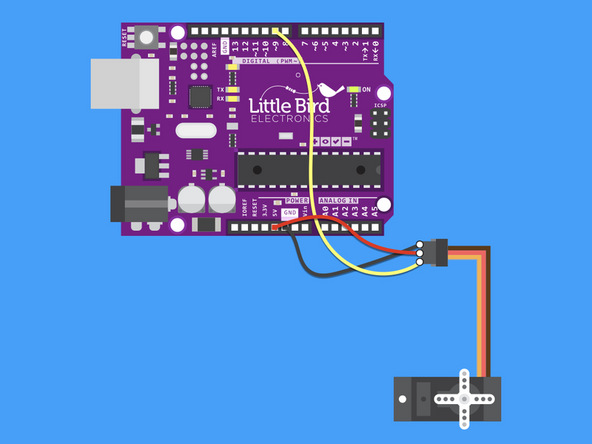
To start off we're going to hook our Servo up to our Arduino.
Once we've done this we'll create another circuit with our LDR/Photocell to catch Elves!
Step 2 — Plug digital pin 9 into the servo
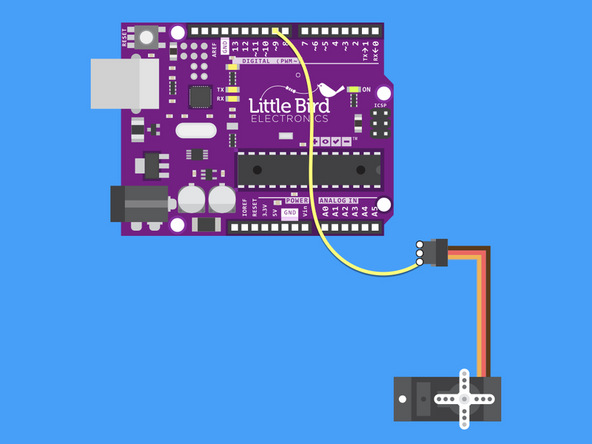
Plug Digital Pin 9 into the Servo's orange line.
Step 3 — Plug 5V into the servo
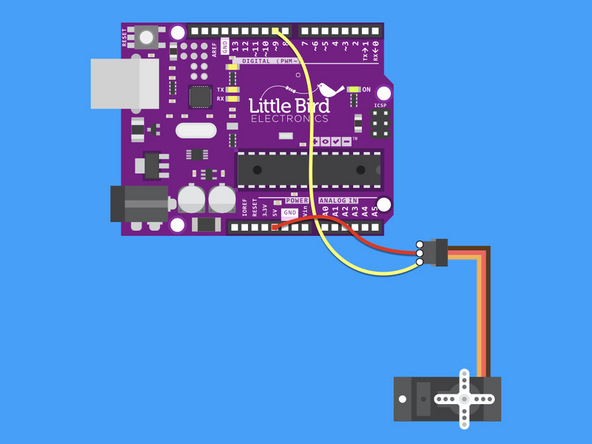
Plug 5V into the Servo's red line.
Step 4 — Plug Ground into the Servo
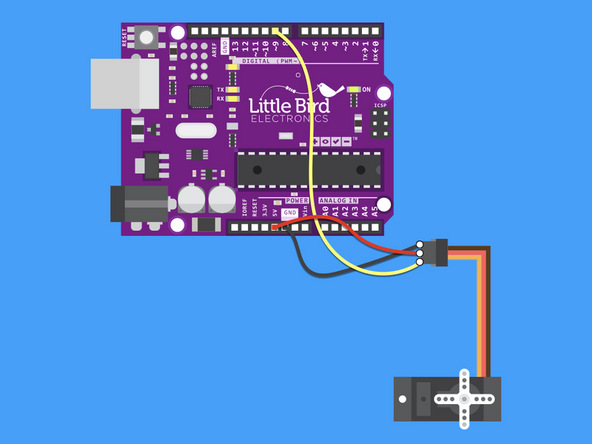
Plug Ground into the Servo's Black line.
Step 5 — Upload the code
#include <Servo.h>

Servo myservo;  // create servo object to control a servo
// twelve servo objects can be created on most boards

int pos = 0;    // variable to store the servo position

void setup() {
  myservo.attach(9);  // attaches the servo on pin 9 to the servo object
}

void loop() {
  for (pos = 0; pos <= 180; pos += 1) { // goes from 0 degrees to 180 degrees
    // in steps of 1 degree
    myservo.write(pos);              // tell servo to go to position in variable 'pos'
    delay(5);                       // waits 5ms for the servo to reach the position
  }
  for (pos = 180; pos >= 0; pos -= 1) { // goes from 180 degrees to 0 degrees
    myservo.write(pos);              // tell servo to go to position in variable 'pos'
    delay(5);                       // waits 5ms for the servo to reach the position
  }
}
Load this code into your Arduino IDE
The servo should start swinging back and forth 180 degrees.
Now lets see if we can catch a Christmas Elf in action!
Step 6 — Part 2
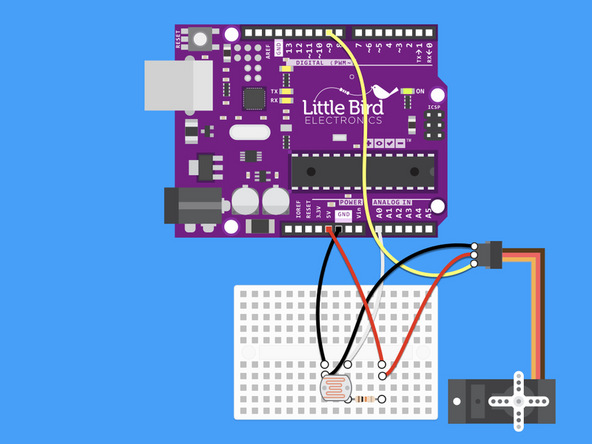
Now we're going to create a circuit and write some code that actuates the Servo when a change in light is detected.
Step 7 — Insert 10K Resistor
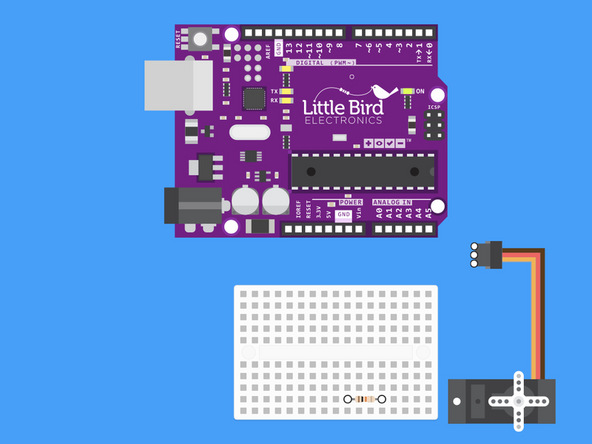
Insert 10K Resistor into the Breadboard.
Step 8 — Insert LDR into breadboard
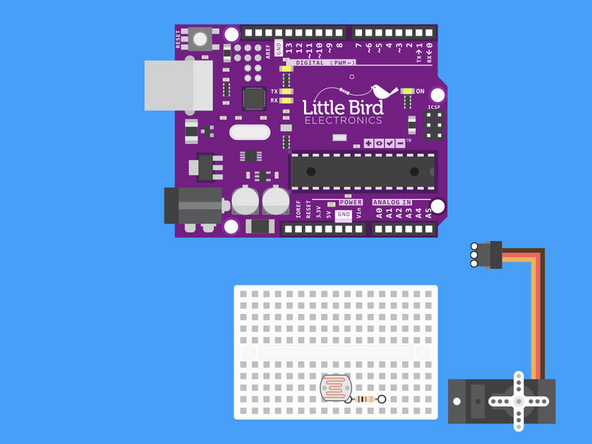
Insert the LDR into Breadboard so that one leg is inline with our resistor.
Step 9 — Connect Ground to the LDR
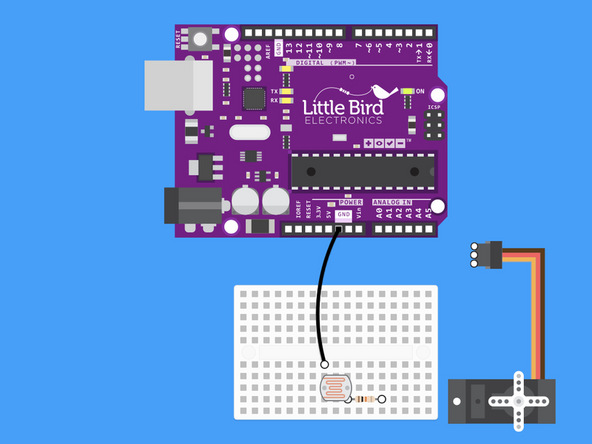
Connect Ground to the LDR
Step 10 — Connect Analogue 0 to the LDR
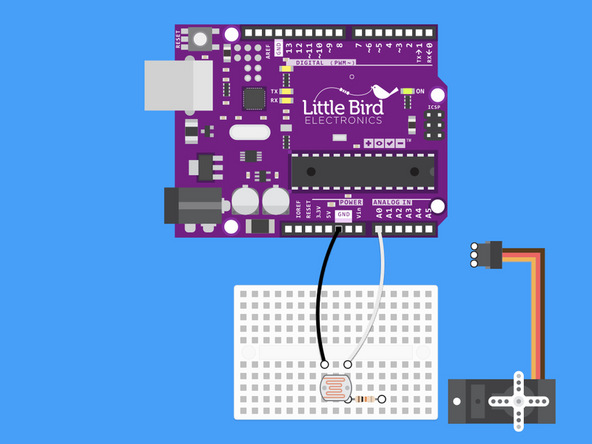
Connect Analogue 0 to the LDR.
Step 11 — Connect 5V to the 10k Ohm Resistor.
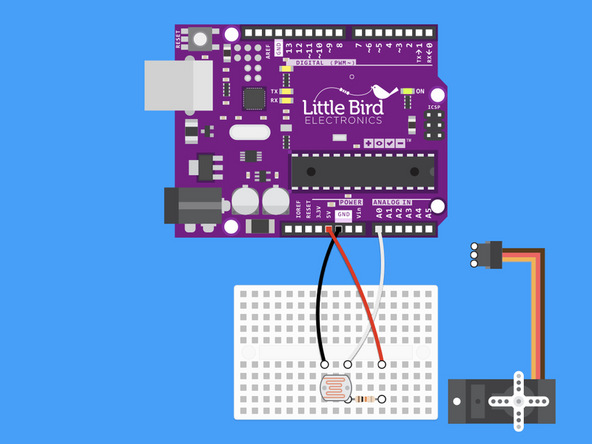
Connect 5V to the 10k Ohm Resistor.
Can you see the voltage divider we just made?
Step 12 — Connect Digital Pin 9 to the Servo
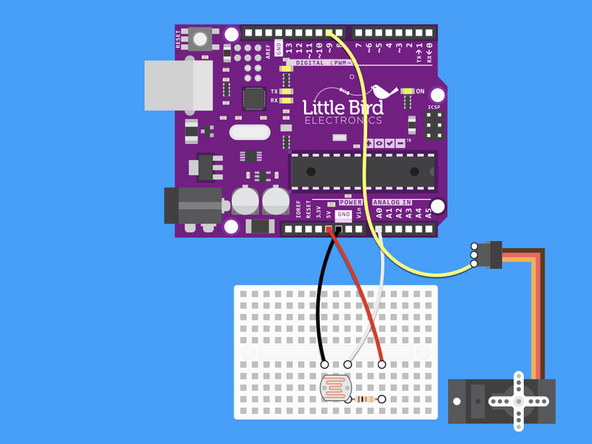
Connect Digital Pin 9 to the Servo's orange signal pin.
Step 13 — Connect the servo to ground
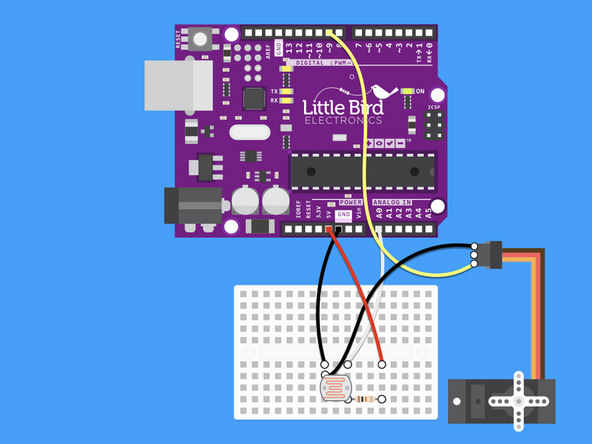
Connect the Servo to Ground
Step 14 — Connect the Servo to 5V
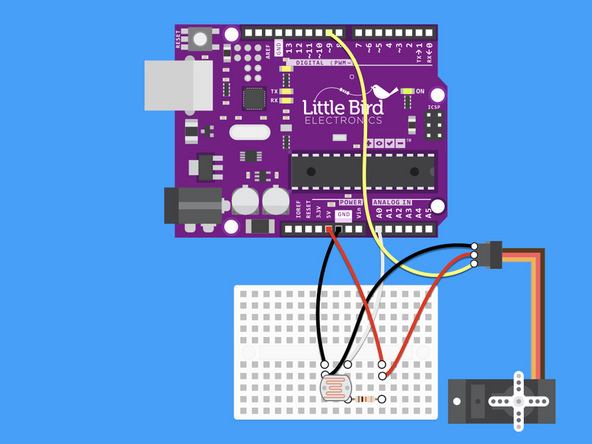
Connect the Servo to 5V.
Step 15 — Upload the code
#include <Servo.h>

Servo myservo;  // create servo object to control a servo
int ldr = 0;  //analog pin to which LDR is connected
int ldr_value = 0; //variable to store LDR values
int take_photo = 100; // value when we want to take a photo when a light comes on
int pos = 0;    // variable to store the servo position


void setup() {
Serial.begin(9600); //start serial Monitor
myservo.attach(9);  // attaches the servo on pin 9 to the servo object
}

void loop() {

ldr_value = analogRead(ldr);
Serial.println(ldr_value); //prints photoresistor value
delay(100); // value updated every 0.1 second.

if (ldr_value < take_photo) // if sensor value is less than 100 it will turn the servo on.
   {
    //take photo

    for (pos = 0; pos <= 180; pos += 1) { // goes from 0 degrees to 180 degrees
        // in steps of 1 degree
        myservo.write(pos);              // tell servo to go to position in variable 'pos'
        delay(5);                       // waits 5ms for the servo to reach the position
      }
      for (pos = 180; pos >= 0; pos -= 1) { // goes from 180 degrees to 0 degrees
        myservo.write(pos);              // tell servo to go to position in variable 'pos'
        delay(5);                       // waits 5ms for the servo to reach the position
      }
      delay (10000);  //wait 10 seconds before checking again

    }
   else
   {
    Serial.println(ldr_value);
   }
}
Upload this code for turning the servo on when the light is bright.
Step 16 — Use the Servo to Press a Button and Take a Photo
Now let's look at the light switching on and the servo pushing a button and taking a photo on my computer.
Step 17 — Catching an Elf in the Act
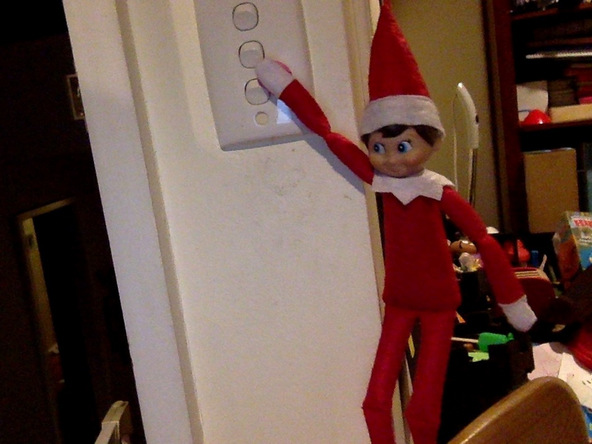
Proof that the Elf in our house is up to mischief.
We caught him as he turned the light switch on
Parts List
Optional Extras (2)

Project Summary
2 parts total
Required parts
$0.00
Optional extras
+$25.05
Total (required)
$0.00
Unavailable items will be skipped
