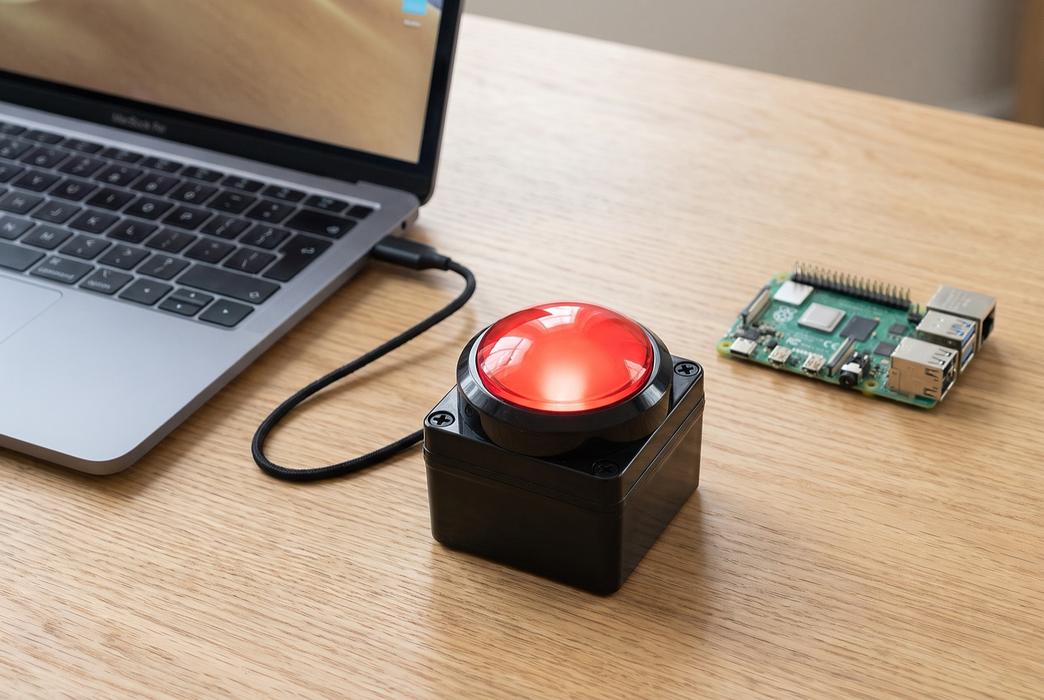
Set up the Big Game Button on macOS, Raspberry Pi, Linux and Windows
Make the 100mm USB button play a buzzer, press a shortcut, type text or run a command
Step 1 — Plug it in with the USB-A to USB-C cable

Plug the USB-C end of the included cable into the button and the USB-A end into your computer. Press the button: it should light up while you hold it down.
Use the cable that came in the box. The button doesn't power up on a USB-C to USB-C cable, even in a USB-C port, so it won't light up and your computer won't see it. If your computer only has USB-C ports, plug the included cable into a USB-C to USB-A adapter or hub.
On a Mac, a Keyboard Setup Assistant window may pop up the first time you plug it in. Just close it: the button is a one-key keyboard and can't answer its questions.
Step 2 — Try it as an Enter key
Open any text editor and press the button. The cursor jumps to a new line, because out of the box the button is a standard USB keyboard with one key: Enter. It sends key down when you press and key up when you let go, and holding it down repeats Enter just like a normal key.
That works on Windows, macOS, Linux and Raspberry Pi with no drivers. If your quiz or buzzer software listens for Enter, you're done! Read on to make the button do something else.
Step 3 — Mac: install the Big Red Button app
curl -fsSL https://littlebirdelectronics.com.au/install/big-red-button.sh | bash
On macOS 13 Ventura or newer, open Terminal (in Applications → Utilities), paste this line and press Return.
It installs the Big Red Button app into Applications and opens it. You'll see a small button icon in your menu bar. It doesn't need drivers, system extensions or any changes to macOS security settings, and you can run the same line again later to update.
Step 4 — Mac: let the app see the button
macOS asks to let Big Red Button receive keystrokes from any application. This permission, called Input Monitoring, is how the app sees the big button being pressed.
- Click Open System Settings.
- Under Privacy & Security → Input Monitoring, switch Big Red Button on.
- Press the button. You'll hear a game-show buzzer!
If you missed the prompt, click the button icon in the menu bar and choose Allow Input Monitoring….
Step 5 — Mac: choose what the button does
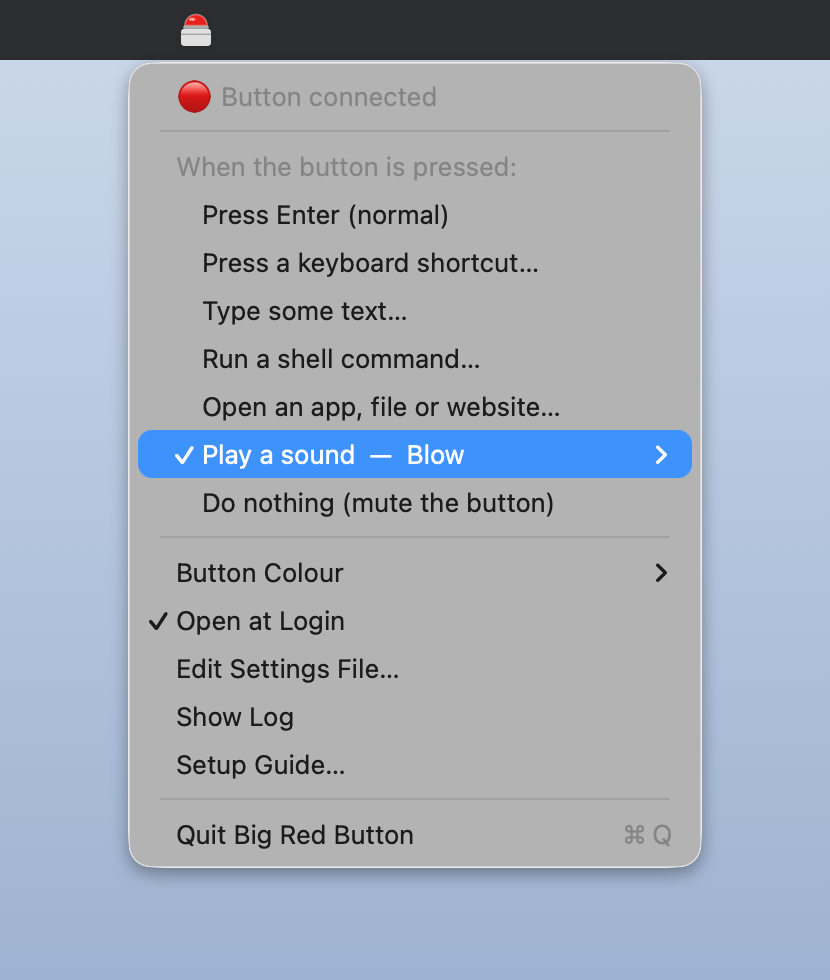
Click the button icon in the menu bar. Under When the button is pressed, pick one of these:
- Press a keyboard shortcut: press the shortcut you want, e.g. ⌘⇧4 or Space. The keys stay held while the button is held, so it works as a push-to-talk key or a game control.
- Type some text
- Run a shell command, e.g.
say "Time's up"orshortcuts run "My Shortcut"to trigger anything in the Shortcuts app - Open an app, file or website
- Play a sound: Buzzer, Ding or any macOS sound
- Press Enter (normal) or Do nothing
Shortcuts and typing need one more permission, Accessibility, and the app asks for it when you choose them. Use Button Colour to match the menu bar icon to your button. The app starts automatically when you log in, and it only changes the big button, so your keyboard's Enter key keeps working.
Step 6 — Raspberry Pi or Linux: install the service
curl -fsSL https://littlebirdelectronics.com.au/install/big-red-button.sh | bash
On a Raspberry Pi (any model from the Zero to the Pi 5, on 32- or 64-bit Raspberry Pi OS) or most other Linux computers, open a terminal or SSH in and run this line. You may be asked for your password.
It installs the bigredbutton service, which starts straight away and at every boot. Until you tell it otherwise, the button keeps pressing Enter.
Step 7 — Raspberry Pi or Linux: tell the button what to do
# Play a sound
sudo bigredbutton set command "aplay /usr/share/sounds/alsa/Front_Center.wav"

# Take a photo with the Raspberry Pi camera
sudo bigredbutton set command 'rpicam-still -n -t 500 -o "$HOME/button-$(date +%Y%m%d-%H%M%S).jpg"'

# Press a key or shortcut
sudo bigredbutton set keys "space"
sudo bigredbutton set keys "ctrl+alt+t"

# Type some text
sudo bigredbutton set text "Hello!"

# Back to a normal Enter key
sudo bigredbutton set enter
Pick one of these. Each takes effect straight away. Commands run as you, not as root, and the service holds onto the button, so its Enter no longer reaches other programs.
keys works on the desktop and in the console. The key stays held while the button is held, which makes it handy for games.
Step 8 — Raspberry Pi: run your own Python script
#!/usr/bin/env python3
"""Runs every time the Big Game Button is pressed."""
from datetime import datetime
from pathlib import Path

# Keep a running log of every press in your home folder.
log = Path.home() / "button-presses.txt"
with log.open("a") as f:
    f.write(f"{datetime.now():%Y-%m-%d %H:%M:%S} Button pressed\n")

presses = len(log.read_text().splitlines())
print(f"Press number {presses}!")
The button can run any program, so the easiest way to build your own project is a Python script. Save this as button.py in your home folder, then point the button at it (change pi to your username):
sudo bigredbutton set command "python3 /home/pi/button.py"
Every press adds a line to button-presses.txt in your home folder. Anything the script prints appears in the service log (see the next step). Swap in your own code to switch a relay, post to a web hook or start a game round.
Step 9 — Raspberry Pi or Linux: check it's working
bigredbutton status
sudo bigredbutton test
sudo journalctl -u bigredbutton -f
status shows the current setting and whether the button is connected. test runs the action once without pressing the button. The service log shows every press, plus anything your commands print. Press Ctrl+C to stop watching it.
Step 10 — Windows
On Windows the button works as an Enter key straight away, so quiz software that listens for Enter needs no setup.
To make only the button do something else and keep your keyboard's Enter key normal, Windows needs a helper that can tell keyboards apart. Our Windows guide walks through AutoHotkey with AutoHotInterception (free, needs a driver install and a restart) and LuaMacros (no driver).
On a PC used only for a quiz or kiosk, the simplest option is to remap Enter for every keyboard with Microsoft PowerToys Keyboard Manager.
Step 11 — Remove the software
curl -fsSL https://littlebirdelectronics.com.au/install/big-red-button.sh | bash -s -- --uninstall
On a Mac or Raspberry Pi, this removes everything the installer added and turns the button back into a plain Enter key. On a Mac you can also switch Big Red Button off in System Settings → Privacy & Security → Input Monitoring.
Step 12 — Troubleshooting
- The button doesn't light up and nothing happens: it isn't getting power. Use the included USB-A to USB-C cable, not a USB-C to USB-C cable.
- The Mac menu says "Needs Input Monitoring permission": System Settings → Privacy & Security → Input Monitoring → switch on Big Red Button.
- A shortcut or text does nothing on a Mac: switch on Big Red Button under System Settings → Privacy & Security → Accessibility.
- On a Mac the button lights up but does nothing, and the menu bar icon is gone: the app isn't running (for example it was force-quit), so the button is still silenced. Open Big Red Button again, or unplug the button and plug it back in to get a plain Enter key.
- You also use Karabiner-Elements: in Karabiner's Devices settings, turn off "Modify events" for USB Keyboard (LinTx).
- Raspberry Pi says the button isn't connected: run
lsusband look for8189:0019. If it isn't listed, check the cable. - A command works in the terminal but not from the button: use full paths to files and programs, and check
sudo journalctl -u bigredbuttonfor errors.
The software is open source (MIT) on GitHub. The button identifies itself as LinTx USB Keyboard, USB ID 8189:0019, if you want to use it from your own code.
Parts List
Required Parts (1)
Or any colour below: they all work the same way
x1
$28.85
In stockOptional Extras (4)



Project Summary
5 parts total
Unavailable items will be skipped