

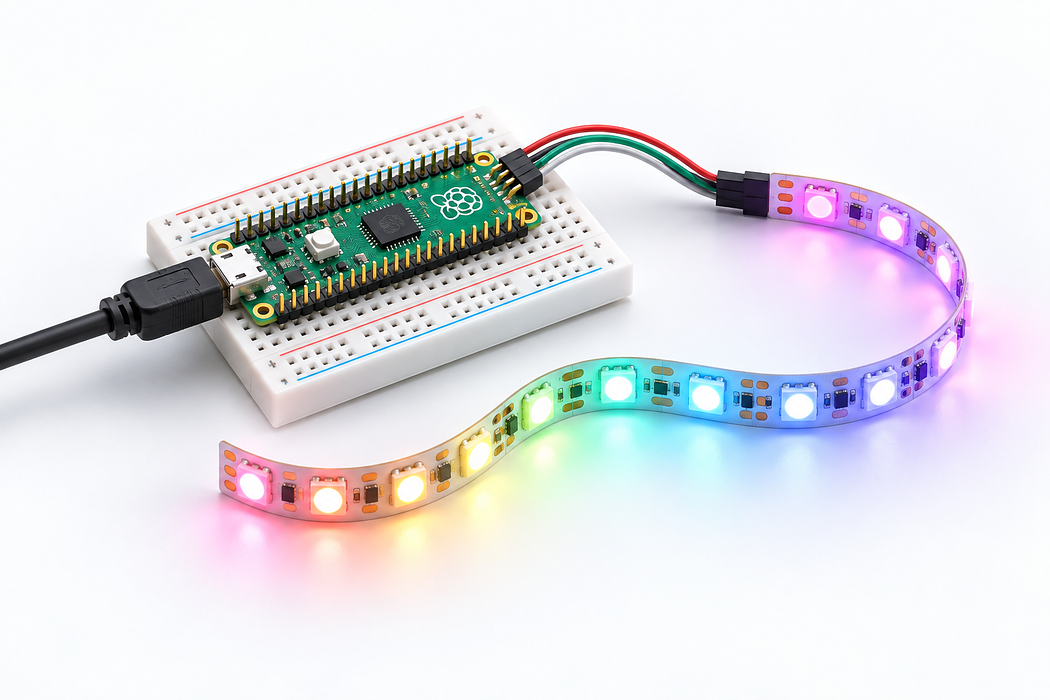
NeoPixel LED Strip Controller with Raspberry Pi Pico
Build a programmable RGB LED strip controller using a Raspberry Pi Pico 2 and NeoPixel LEDs. Create dazzling light patterns with MicroPython.
In this project you'll connect a strip of addressable NeoPixel RGB LEDs to a Raspberry Pi Pico 2 and program colourful animations using MicroPython. No soldering required — just a breadboard and jumper wires.
By the end you'll have a standalone LED controller that cycles through rainbow patterns, colour chases, and breathing effects. You can power it from any USB power bank to create portable lighting for your desk, shelf, or maker space.
Step 1 — Gather your components
Gather your components
Lay out all your components on a clean workspace. You'll need the Raspberry Pi Pico 2, a NeoPixel LED strip, a breadboard, and a few jumper wires.
Make sure the Pico has header pins — if not, you'll need to solder them on first.
Step 2 — Install MicroPython on the Pico
# 1. Download the latest MicroPython UF2 from:
#    https://micropython.org/download/RPI_PICO2/

# 2. Hold the BOOTSEL button on the Pico
# 3. Plug it into your computer via USB
# 4. Release BOOTSEL — it mounts as a USB drive
# 5. Drag the .uf2 file onto the drive
# 6. The Pico reboots automatically into MicroPython
Before wiring anything, flash MicroPython onto your Pico 2. This only needs to be done once.
After flashing, install Thonny IDE on your computer — it's free and connects directly to MicroPython boards over USB.
Step 3 — Wire the NeoPixel strip to the Pico
Wire the NeoPixel strip to the Pico
Connect the NeoPixel strip to the Pico using three jumper wires:
- Red wire — NeoPixel
5V→ PicoVBUS - Black wire — NeoPixel
GND→ PicoGND - Green wire — NeoPixel
DIN(data in) → PicoGP0
Use the breadboard to make clean connections. The data wire must go to the DIN end of the strip (check the arrow direction printed on the strip).
Step 4 — Write the NeoPixel driver code
import array, time
from machine import Pin
import rp2

# Configure the number of LEDs and GPIO pin
NUM_LEDS = 30
PIN_NUM = 0

@rp2.asm_pio(sideset_init=rp2.PIO.OUT_LOW, out_shiftdir=rp2.PIO.SHIFT_LEFT,
             autopull=True, pull_thresh=24)
def ws2812():
    T1 = 2; T2 = 5; T3 = 3
    wrap_target()
    label("bitloop")
    out(x, 1)               .side(0)    [T3 - 1]
    jmp(not_x, "do_zero")   .side(1)    [T1 - 1]
    jmp("bitloop")           .side(1)    [T2 - 1]
    label("do_zero")
    nop()                    .side(0)    [T2 - 1]
    wrap()

sm = rp2.StateMachine(0, ws2812, freq=8_000_000, sideset_base=Pin(PIN_NUM))
sm.active(1)

ar = array.array("I", [0] * NUM_LEDS)

def set_pixel(i, r, g, b):
    ar[i] = (g << 16) | (r << 8) | b

def show():
    sm.put(ar, 8)
    time.sleep_ms(10)

def clear():
    for i in range(NUM_LEDS):
        set_pixel(i, 0, 0, 0)
    show()

print("NeoPixel driver ready!")
Open Thonny and create a new file called neopixel.py. This uses the Pico's PIO (Programmable I/O) hardware to generate the precise timing signals NeoPixels require.
The PIO approach is more reliable than bit-banging and frees up the CPU for your animation logic.
Step 5 — Add rainbow animation
def wheel(pos):
    """Generate rainbow colours across 0-255 positions."""
    if pos < 85:
        return (pos * 3, 255 - pos * 3, 0)
    elif pos < 170:
        pos -= 85
        return (255 - pos * 3, 0, pos * 3)
    else:
        pos -= 170
        return (0, pos * 3, 255 - pos * 3)

def rainbow_cycle(wait_ms=20):
    for j in range(255):
        for i in range(NUM_LEDS):
            rc_index = (i * 256 // NUM_LEDS + j) & 255
            r, g, b = wheel(rc_index)
            set_pixel(i, r, g, b)
        show()
        time.sleep_ms(wait_ms)

# Run it!
print("Starting rainbow...")
while True:
    rainbow_cycle()
Add this code below your driver. The wheel() function maps a position (0–255) to a smooth RGB rainbow. The rainbow_cycle() function shifts the rainbow along the strip each frame.
Save the file as main.py on the Pico so it runs automatically on power-up. Press the green Run button in Thonny to test it now.
Step 6 — Try it with ChatGPT
I have a Raspberry Pi Pico 2 running MicroPython controlling 30 NeoPixel WS2812B LEDs on GPIO pin 0 using PIO. I already have the driver code working.

Please write me a MicroPython animation that creates a "comet tail" effect — a bright white pixel moves along the strip leaving a fading coloured trail behind it. The trail should smoothly fade through the rainbow. Include comments explaining each section.
Now that you have the basics working, try asking an AI assistant to generate new animation patterns for you. Copy the prompt on the left and paste it into ChatGPT or similar.
You can modify the prompt to ask for different effects: fire flicker, breathing pulse, music-reactive, colour temperature control, and more. Each response gives you a new main.py to try on your Pico.
Parts List
Required Parts (4)

1 metre is plenty
x1
$54.15
Out of stock

Optional Extras (1)

Project Summary
5 parts total
Unavailable items will be skipped
