


Beginner
How to install Ollama on the Raspberry Pi 5
Ollama is a framework that lets you run powerful AI models directly on your Pi, for tasks like text generation and translation.
By Cherie Tan
Have you ever wanted to experiment with powerful artificial intelligence models but lacked the resources for cloud computing? Ollama offers a solution! This framework allows you to run large language models (LLMs) directly on your Raspberry Pi 5, opening doors for exciting projects and exploration.
- Open the terminal window on your Raspberry Pi.
- Type the following command and press Enter:
sudo apt update
Note: Ensure your Raspberry Pi is running a 64-bit operating system. Ollama won't work on 32-bit systems.This updates the list of available software packages. Next, type this command and press Enter:
sudo apt upgrade
Use code with caution.
content_copy
This upgrades your Raspberry Pi's software to the latest versions.
Step 1 — Update your system
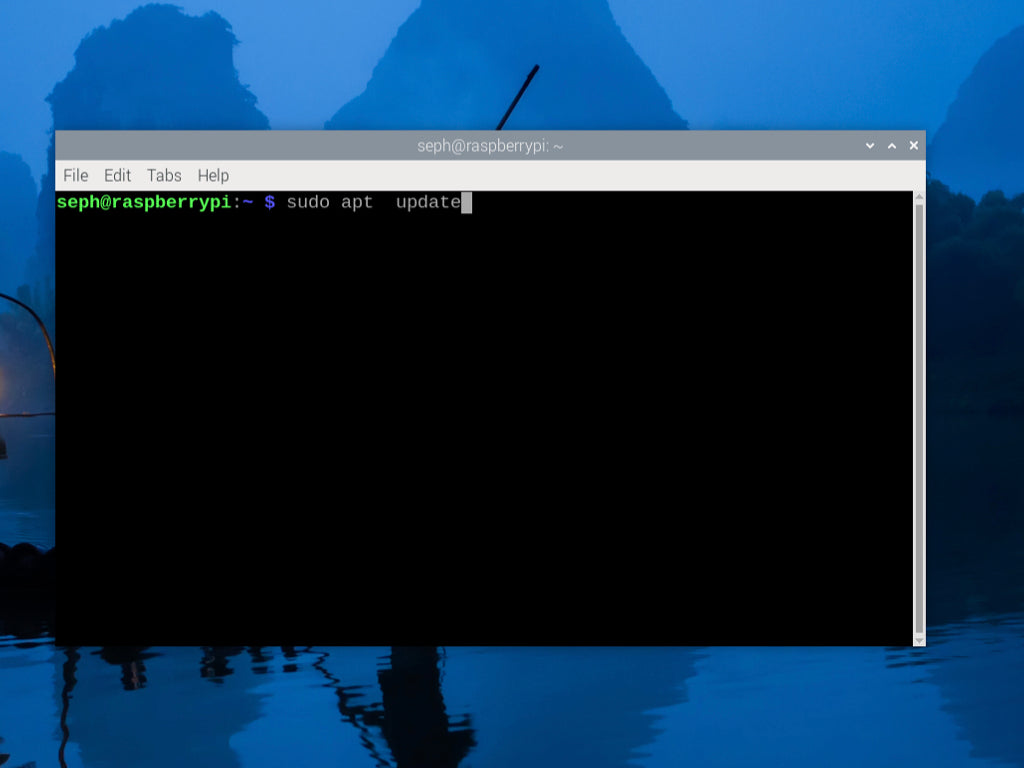
- Open the terminal window on your Raspberry Pi.
- Type the following command and press Enter:
sudo apt update
Note: Ensure your Raspberry Pi is running a 64-bit operating system. Ollama won't work on 32-bit systems.This updates the list of available software packages. Next, type this command and press Enter:
sudo apt upgrade
Use code with caution.
content_copy
This upgrades your Raspberry Pi's software to the latest versions.
Step 2 — Install curl
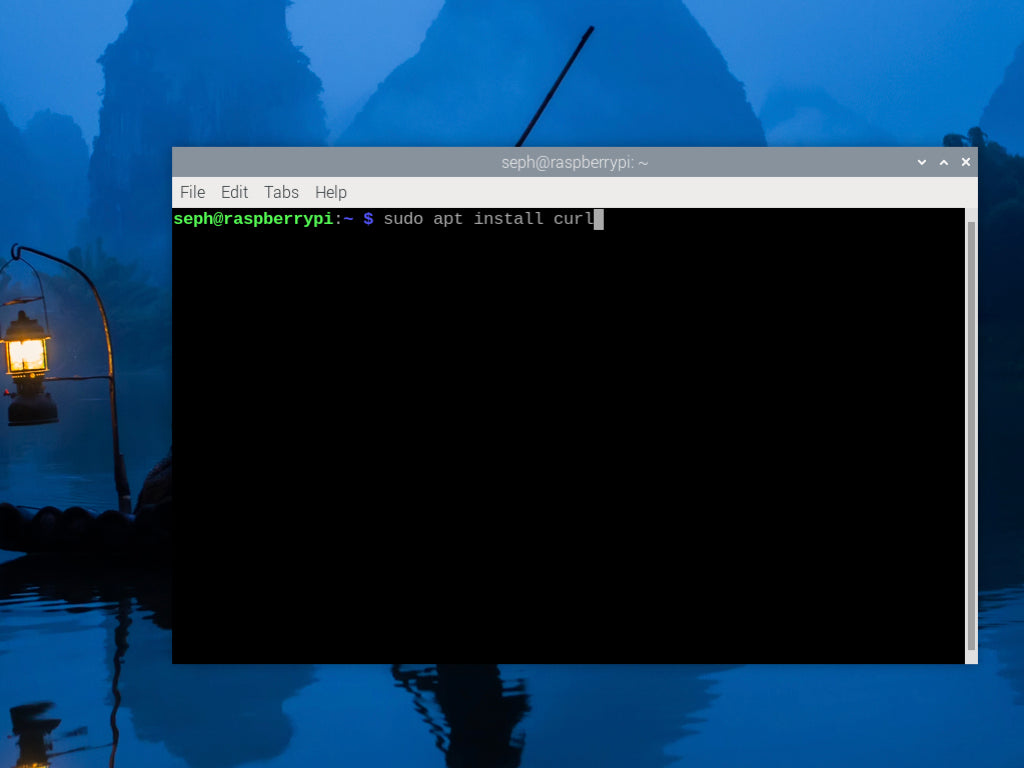
In the terminal window, type the following command and press Enter:
sudo apt install curlThis installs the
curl package, which Ollama uses to download its installer.Step 3 — Download and Install Ollama
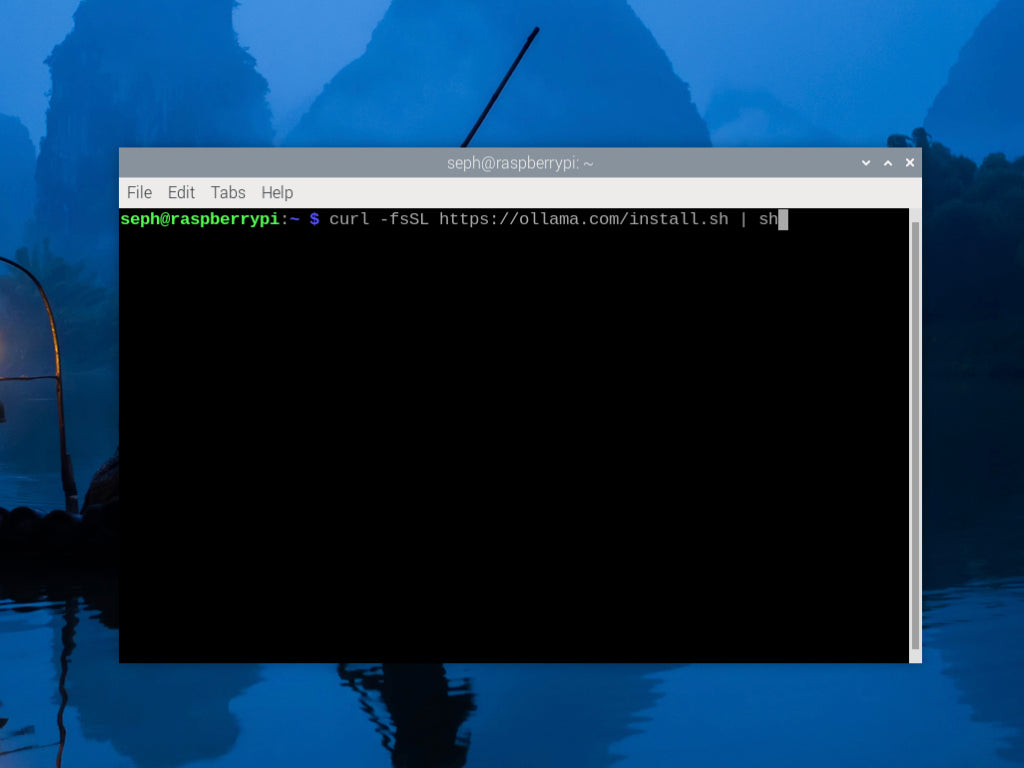
In the terminal window, type the following command and press Enter:
curl -fsSL https://ollama.com/install.sh | shThis downloads the Ollama installation script and runs it automatically. The script will handle the installation process.
Note: Make sure you are using the latest Raspberry Pi OS Bookworm with 64-bit kernel + 64-bit OS. According to some users on Github, this has worked for them. Otherwise you may encounter an error: -bash: /usr/local/bin/ollama: cannot execute: required file not found
Note: Make sure you are using the latest Raspberry Pi OS Bookworm with 64-bit kernel + 64-bit OS. According to some users on Github, this has worked for them. Otherwise you may encounter an error: -bash: /usr/local/bin/ollama: cannot execute: required file not found
Step 4 — Verify installation
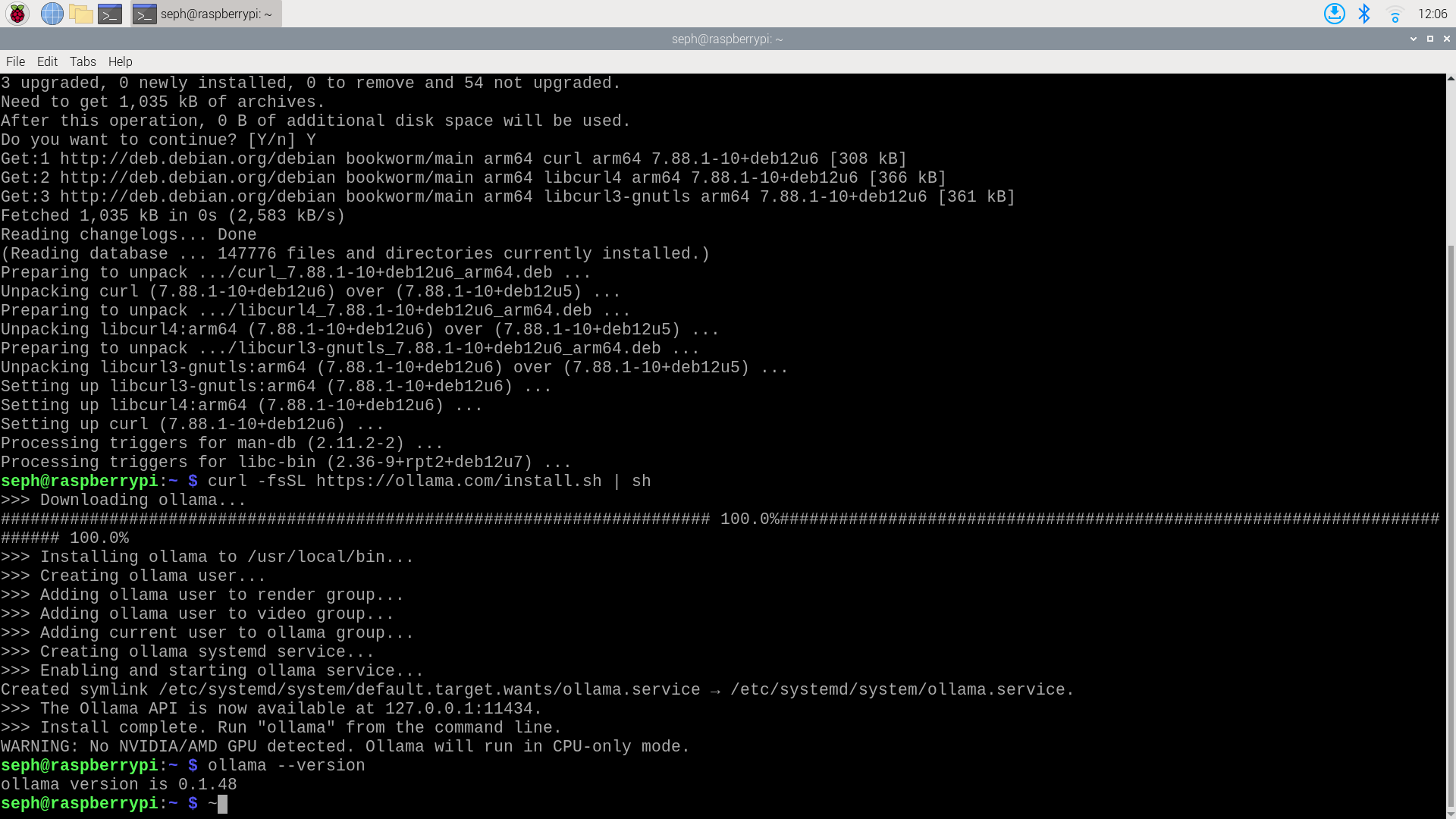
In the terminal window, type the following command and press Enter:
ollama --version
If Ollama is installed correctly, you'll see the installed version displayed in the terminal.
Congratulations! You've successfully installed Ollama on your Raspberry Pi.
